
Last Updated on June 27, 2026 by Digiinte.com Team
If you have a WordPress website and you are not getting the traffic you hoped for, you are not alone. Thousands of bloggers and business owners launch beautiful WordPress sites every single day and then wonder why Google is not sending them visitors. The answer is almost always the same: SEO has not been set up properly.
The good news is that WordPress is one of the best platforms in the world for SEO. It is flexible, customizable, and has an enormous ecosystem of tools that make optimization straightforward even if you have never done it before. But WordPress does not do the work for you automatically. You have to know what to set up, in what order, and why each step matters.
- Step 1: Understand What WordPress SEO Actually Means
- Step 2: Get Your Basic WordPress Settings Right
- Step 3: Install the Right SEO Plugin
- Step 4: Do Keyword Research Before You Write
- Step 5: Optimize Every Page and Post for On Page SEO
- Step 6: Set Up Your XML Sitemap and Google Search Console
- Step 7: Improve Your WordPress Site Speed
- Step 8: Build a Smart Internal Linking Structure
- Step 9: Create Content That Actually Deserves to Rank
- Step 10: Track Your Results and Keep Improving
- Quick WordPress SEO Checklist: Everything in One Place
- Frequently Asked Questions About WordPress SEO
- Final Thoughts
That is exactly what this guide is for. We are going to walk through every major area of WordPress SEO in a logical, beginner friendly way. By the time you finish reading, you will know exactly what to do to start climbing Google rankings and bringing in real organic traffic. No technical jargon, no overwhelming lists of a hundred things to do at once. Just a clear, step by step plan you can actually follow.
Let us get started.

Step 1: Understand What WordPress SEO Actually Means
Before you touch a single setting, it helps to understand what SEO means in the context of WordPress. SEO stands for Search Engine Optimization, and it is the ongoing process of making your website easier for Google and other search engines to find, understand, and rank.
WordPress SEO covers three main areas, and all three work together:
- On page SEO: This is about the content on each individual page or post. It includes your keywords, headings, meta titles, meta descriptions, and how well your content answers the question someone typed into Google.
- Technical SEO: This is about the behind the scenes setup of your website. Site speed, mobile friendliness, URL structure, sitemaps, and how search engines crawl your site all fall into this category.
- Off page SEO: This refers to signals that come from outside your website, particularly backlinks from other sites that point to your content. More high quality backlinks generally mean more authority and better rankings.
This guide focuses primarily on on page and technical SEO because those are the areas you have direct control over from inside WordPress. Backlink building is important but comes later once the foundation is solid.
One important thing to understand before you dive in: SEO takes time. Most WordPress sites start seeing meaningful results after three to six months of consistent effort. Do not expect overnight rankings, but do expect steady, compounding growth if you follow the right steps.
Step 2: Get Your Basic WordPress Settings Right
There are a few foundational settings inside your WordPress dashboard that have a big impact on SEO. These are easy to overlook because they are buried in your admin panel, but they matter a great deal.
Check Your Site Visibility Settings
This is the most common beginner mistake. When you first install WordPress, there is a setting called Search Engine Visibility under Settings and then Reading. If the box that says Discourage search engines from indexing this site is checked, Google cannot index any of your content. This is sometimes turned on during site development and left on accidentally.
Go to Settings, click Reading, and make sure that box is unchecked. This single check takes ten seconds and can unlock your entire site for Google indexing.
Set Up SEO Friendly Permalinks
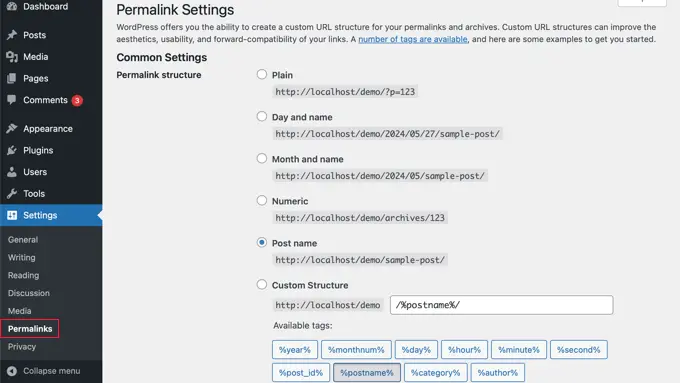
Permalinks are the URL structure that WordPress uses for your pages and posts. By default, WordPress sometimes uses URLs that look like yoursite.com with a confusing string of numbers after a question mark. These are terrible for SEO because they tell Google nothing about what the page is about.
To fix this, go to Settings and then click Permalinks. Select the Post Name option. This creates clean, readable URLs like yoursite.com/your-post-title. This format is great for both search engines and readers because it includes the topic of the page right in the link.
Make this change before you start publishing content because changing permalink structure later can break existing URLs and hurt rankings.
Make Sure Your Site Uses HTTPS
Google uses HTTPS as a ranking signal. If your site still runs on HTTP, you are at a disadvantage compared to sites that use a secure SSL certificate. Most hosting providers now offer free SSL certificates. Check with your host to enable it, and then install a plugin like Really Simple SSL to make sure all traffic redirects properly from HTTP to HTTPS.
Step 3: Install the Right SEO Plugin
This is the step that unlocks your ability to properly optimize every page and post on your WordPress site. An SEO plugin gives you control over meta titles, meta descriptions, sitemaps, schema markup, and much more, all from within your content editor.
The two best options for most WordPress users are Yoast SEO and Rank Math. Here is a simple comparison to help you choose:
| Feature | Yoast SEO | Rank Math |
| Ease of use | Excellent for beginners | Slightly more technical |
| Free version | Strong free version | Very powerful free version |
| Schema markup | Basic (free), Full (paid) | Advanced schema free |
| Keyword tracking | 1 keyword (free) | 5 keywords (free) |
| Best for | Complete beginners | Users wanting more features |
Both plugins are excellent choices. If you have never done SEO before, Yoast SEO is a great starting point because its traffic light scoring system makes it very clear what you need to fix on each post. If you want more advanced features without paying for a premium plan, Rank Math gives you more in the free version.
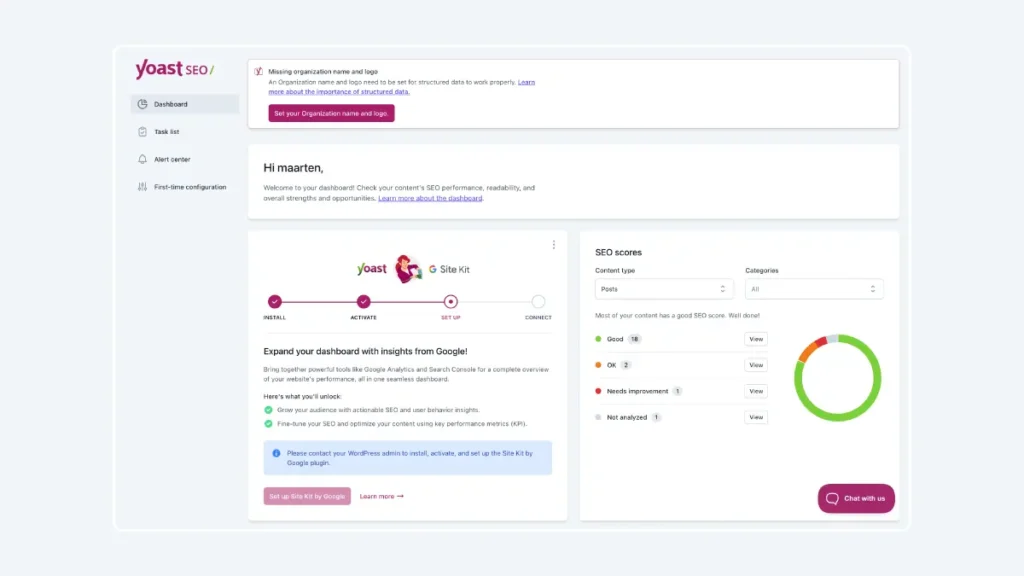
Once you install your chosen plugin, run through its setup wizard. It will ask you basic questions about your site type, connect to Google Search Console, and configure your basic sitemap automatically. This process takes about ten to fifteen minutes and sets up the most important technical foundations in one go.
Step 4: Do Keyword Research Before You Write
One of the biggest mistakes WordPress bloggers make is writing content about topics without checking whether anyone actually searches for those topics on Google. Keyword research is how you find out what your potential readers are typing into search engines so you can create content that shows up for those searches.
Find the Right Keywords for Your Niche
Start by brainstorming five to ten broad topics that your blog or business covers. These are your seed topics. Then use a keyword research tool to expand each one into dozens of more specific phrases that real people search for.
For beginners with new sites, the goal is to target keywords with decent search volume but low keyword difficulty. Long tail keywords are your best friend here. These are longer, more specific phrases like how to add meta description in WordPress or best WordPress SEO settings rather than broad terms like SEO or WordPress.
Good free keyword research tools include:
- Google Keyword Planner: Free and reliable for checking monthly search volumes and finding related keyword ideas
- Ubersuggest: Gives you keyword difficulty scores, search volume, and content ideas with a generous free tier
- AnswerThePublic: Great for finding question based keywords that people actually type into Google
- Google Search Console: Once connected to your site, shows you the exact search queries people use to find your pages
How to Use Keywords in Your Content
Once you have chosen a primary keyword for a post, here is how to use it correctly without overdoing it:
- Include your primary keyword in the post title, ideally near the beginning
- Use it naturally in the first paragraph of your content
- Include it in at least one H2 or H3 subheading throughout the post
- Use it in your meta title and meta description using your SEO plugin
- Add it to your URL slug, keeping the URL short and clean
- Use related keywords and synonyms naturally throughout the rest of the content
What you should never do is stuff keywords unnaturally into your content just to hit a certain density. Google has become very good at detecting keyword stuffing and it will actually hurt your rankings rather than help them. Write for humans first, and let the keywords fit in naturally.
Step 5: Optimize Every Page and Post for On Page SEO
On page SEO is where most of your day to day optimization work happens. Every time you publish a post or page on WordPress, you should go through a checklist of elements to make sure it is properly optimized.
Write a Strong SEO Title
Your SEO title is what appears as the blue clickable link in Google search results. It should include your primary keyword, ideally near the start, and it should be compelling enough that someone who sees it wants to click. Keep it under 60 characters so Google does not cut it off. Your SEO plugin will show you how many characters you are using in real time.
Write a Click Worthy Meta Description
The meta description is the short paragraph that appears beneath your title in search results. Google does not use it as a direct ranking factor, but it has a huge impact on click through rate, which indirectly affects your rankings. A good meta description summarizes what the reader will find on the page and includes a reason to click. Keep it between 120 and 155 characters.
Use Proper Heading Structure
Every post should have one H1 heading, which is almost always your post title in WordPress. Then use H2 headings for your main sections and H3 headings for subsections within those. This hierarchy helps both readers and search engines understand the structure and topics covered in your content.
Try to include your primary keyword or closely related keywords naturally in your H2 and H3 headings. This gives Google additional signals about what each section of your content covers.
Optimize Your Images
Images make your content more engaging, but they also need to be optimized for SEO. There are three things to do with every image you upload to WordPress:
- Give it a descriptive file name before uploading. Instead of IMG00234.jpg use wordpress-seo-settings-guide.jpg. This helps search engines understand what the image shows.
- Write descriptive alt text for every image. Alt text is the written description that screen readers use and that search engines read to understand image content. Include your keyword naturally where it fits.
- Compress images before uploading. Large image files slow down your page load time significantly. Use a plugin like Smush, ShortPixel, or Imagify to compress images automatically without losing quality.
Create Clean, Keyword Rich URLs
Your post URL should be short, readable, and include your primary keyword. WordPress automatically generates a URL based on your post title, but sometimes these are too long. Edit the URL slug in your editor to keep it clean. For example, a post titled The Ultimate WordPress SEO Guide for Beginners in 2026 might have the slug wordpress-seo-guide-beginners. Short, clear, and keyword focused.
Step 6: Set Up Your XML Sitemap and Google Search Console
A sitemap is a file that lists all the important pages on your website and helps search engines find and index your content efficiently. Your SEO plugin, whether that is Yoast SEO or Rank Math, generates an XML sitemap for your site automatically.
Once your sitemap is generated, you need to submit it to Google Search Console. Here is how to do it:
- Go to Google Search Console and add your website as a property
- Verify ownership using the HTML tag method or Google Analytics
- Click on Sitemaps in the left hand menu
- Enter the URL of your sitemap, usually yoursite.com/sitemap_index.xml for Yoast or yoursite.com/sitemap.xml for Rank Math
- Click Submit and wait for Google to process it
After submitting, Google Search Console becomes one of the most valuable tools you have for monitoring your SEO performance. You can see which pages have been indexed, which keywords are bringing traffic, and whether there are any technical errors that need fixing.
Step 7: Improve Your WordPress Site Speed
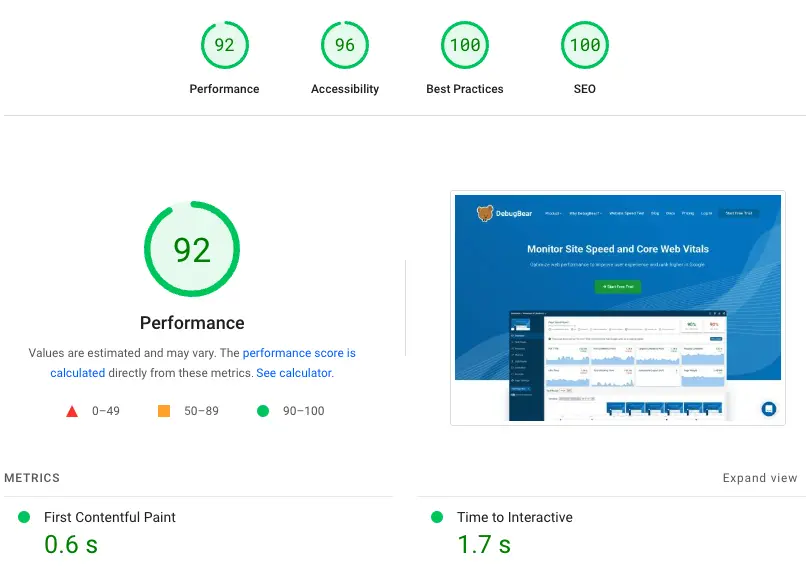
Site speed is one of the most important ranking factors Google uses today, especially since Google switched to mobile first indexing. If your WordPress site takes more than three seconds to load, a significant portion of visitors will leave before the page finishes loading. This hurts both your user experience and your SEO.
Here are the most effective ways to speed up a WordPress site:
Install a Caching Plugin
Caching plugins create saved versions of your pages so they load faster for repeat visitors. WP Rocket is the premium option that most professionals recommend for its results and ease of use. W3 Total Cache and WP Super Cache are solid free alternatives that still deliver meaningful speed improvements.
Use a Content Delivery Network
A content delivery network, or CDN, stores copies of your website files on servers around the world. When someone visits your site, they are served the content from the server closest to their location, which dramatically reduces load time. Cloudflare offers a free CDN tier that works well with WordPress.
Optimize and Compress Images
Images are usually the single biggest cause of slow WordPress sites. Install an image compression plugin like Smush, ShortPixel, or Imagify. These tools automatically compress new uploads and can bulk compress your existing image library. Look for plugins that support WebP conversion, as WebP images are significantly smaller than JPEGs without visible quality loss.
Choose Fast, Lightweight Themes
A bloated theme filled with unnecessary features and animations can add seconds to your load time. Lightweight themes like Astra, GeneratePress, and Kadence are built specifically for speed and are excellent choices for SEO focused WordPress sites. Avoid page builder heavy themes unless they are known for performance.
Test your site speed regularly using Google PageSpeed Insights or GTmetrix. Both tools give you a detailed list of specific issues to fix and show you how your improvements are impacting load time over time.
Step 8: Build a Smart Internal Linking Structure
Internal linking means linking from one page on your website to another page on the same site. This is one of the most underused SEO tactics on WordPress, and it has multiple benefits when done well.
First, internal links help Google discover and index more of your pages. When a search engine crawls one of your posts and finds links to other posts, it follows those links and indexes the linked pages too. Second, internal linking distributes what SEO professionals call link equity across your site, meaning it passes ranking strength from strong pages to newer or weaker ones. Third, it keeps readers on your site longer by pointing them to related content they might find useful.
A practical internal linking strategy for WordPress bloggers looks like this:
- When you publish a new post, go back to two or three older posts on related topics and add a link to the new content where it makes sense contextually
- Use natural anchor text for your links. Anchor text is the clickable words in a hyperlink. It should describe what the linked page is about rather than just saying click here
- Aim to include two to five internal links in every post you write
- Create pillar content pieces, which are long comprehensive guides on broad topics, and link to them from multiple shorter posts on related subtopics
The Yoast SEO and Rank Math plugins both offer internal linking suggestions inside the post editor. They scan your content and suggest relevant existing posts you might want to link to, which makes the process much faster.
Step 9: Create Content That Actually Deserves to Rank
All the technical SEO in the world will not help you if your content is thin, vague, or fails to properly answer what someone was searching for when they found your page. Google has gotten remarkably good at judging content quality, and its ranking systems increasingly reward what it calls helpful content.
Here is what helpful, rankable content looks like on a WordPress blog:
Match the Search Intent
Every keyword has an intent behind it. Someone searching for how to add meta description in WordPress wants a tutorial with clear steps. Someone searching for best WordPress SEO plugins wants a comparison of options. Match your content format to the intent behind the keyword you are targeting.
Cover the Topic Thoroughly
For competitive SEO topics, thin content of three hundred or four hundred words rarely ranks. Look at the pages that currently rank for your target keyword and note roughly how long and comprehensive they are. Your goal is not to copy them but to cover the topic as well as they do, ideally better.
Update Your Content Regularly
Old blog posts can lose rankings over time if the information becomes outdated. Make it a habit to revisit your most important posts every six to twelve months. Update statistics, add new sections, improve the headings, and refresh the SEO settings in your plugin. Google rewards content that is kept current and accurate.
Write in a Way That Is Easy to Read
Keep paragraphs short, use subheadings to break up long sections, and write in plain language that your audience can easily follow. Readability is both a user experience factor and an SEO factor. If your content is hard to read, people leave quickly, and that sends a negative signal to Google. Your SEO plugin will give you a readability score alongside your SEO score, and both are worth paying attention to.
Step 10: Track Your Results and Keep Improving
SEO is not a set it and forget it task. It is an ongoing process of testing, monitoring, and refining. Once you have the foundations in place, you need to track what is working and what still needs attention.
The two most important free tools for tracking your WordPress SEO performance are:
Google Search Console
This is your direct window into how Google sees your website. It shows you which pages are being indexed, which keywords are driving impressions and clicks, what your average position is for different searches, and whether there are any errors preventing pages from ranking. Check it at least once a week when you are actively working on your SEO.
Google Analytics
While Search Console shows you what happens in Google before someone clicks, Google Analytics shows you what happens after they arrive on your site. You can see which pages get the most traffic, how long people stay, what percentage of visitors come from organic search, and which content drives the most engagement. The MonsterInsights plugin makes it easy to connect Google Analytics to WordPress without touching any code.
Use data from both tools to make decisions about what to write next, which posts to update, and where you are losing potential traffic. SEO strategy should always be guided by data rather than guesswork.
Quick WordPress SEO Checklist: Everything in One Place
Here is a summary of every major action from this guide that you can use as a practical reference:
Foundation Setup
- Uncheck Discourage search engines under Settings and then Reading
- Set permalinks to Post Name under Settings and then Permalinks
- Enable HTTPS and SSL certificate
- Install Yoast SEO or Rank Math and run the setup wizard
- Submit your XML sitemap to Google Search Console
On Page SEO (for every post)
- Research and choose a primary keyword with low KD and decent volume
- Include the keyword in your title, first paragraph, one heading, URL slug, and meta description
- Use proper heading structure with one H1 and multiple H2 and H3 headings
- Optimize all images with descriptive file names, alt text, and compression
- Add two to five internal links to related content
Technical SEO
- Install a caching plugin for faster page load times
- Set up Cloudflare or another CDN for global delivery speed
- Use a lightweight, mobile responsive WordPress theme
- Test site speed with Google PageSpeed Insights monthly
Ongoing Tasks
- Check Google Search Console weekly for errors and new keyword data
- Update old posts every six to twelve months with fresh content
- Add internal links to older posts whenever you publish something new
- Monitor keyword rankings and adjust your content strategy based on what is working
Frequently Asked Questions About WordPress SEO
These are the questions that beginners ask most often when they start working on WordPress SEO. If something was not fully covered in the guide above, you will likely find the answer here.
Final Thoughts
WordPress SEO can feel overwhelming when you look at everything at once. But the key is to start with the foundations and build from there. Fix your basic settings first, install a good SEO plugin, do your keyword research before writing, optimize each post as you publish it, improve your site speed, and let the results compound over time.
You do not need to be a developer or a technical expert to do this well. Everything covered in this guide is accessible to complete beginners, and the tools available inside WordPress make implementation straightforward. The most important ingredient is consistency. Small improvements made regularly add up to significant organic traffic growth over months and years.
The bloggers and website owners who rank well on Google are not necessarily the most talented writers or the biggest brands. They are the ones who took the time to understand what Google looks for and built their WordPress sites accordingly. You now have everything you need to do the same.
Start today, work through the steps, and revisit this guide whenever you need a refresher. Your first page rankings are closer than you think.
