
Last Updated on August 3, 2026 by Digiinte.com Team
Googlebot blocked by robots.txt on WordPress usually means the “Discourage search engines” setting under Settings, Reading is accidentally enabled, a staging site’s robots.txt was copied to production, or a security plugin added a Disallow rule. Check Google Search Console’s Page Indexing report, fix the robots.txt file, then request indexing to confirm the fix.
You publish a page, wait a few days, and it never shows up in Google. You check Search Console and there it is, “Blocked by robots.txt,” a warning that sounds serious and vague at the same time. The good news is that this is one of the most common, most fixable WordPress SEO issues out there, and in most cases the actual cause is a single setting or a single line in a file.
- Key Takeaways
- What Blocked by robots.txt Actually Means
- Blocked by robots.txt vs Indexed, though blocked by robots.txt
- Common WordPress-Specific Causes
- Step by Step Fix
- Step 1: Confirm the Issue in Google Search Console
- Step 2: Check the WordPress Reading Settings First
- Step 3: View Your Live Robots.txt File Directly
- Step 4: Use the URL Inspection Tool for a Specific Page
- Step 5: Edit the Robots.txt File
- Step 6: Request Indexing to Confirm the Fix
- Step 7: Monitor Search Console Over the Following Days
- Quick Diagnostic Checklist
- How to Prevent This From Happening Again
- Frequently Asked Questions
- Conclusion
This guide walks through exactly what this error means, the specific WordPress causes behind it, and the steps to fix and confirm it, so your pages actually make it into Google’s index.
Key Takeaways
- “Blocked by robots.txt” means Googlebot found a URL but was told not to crawl it, which is different from a page simply not being indexed yet.
- On WordPress specifically, the most common cause is the built-in “Discourage search engines from indexing this site” setting being left checked after launch.
- A staging site’s robots.txt file accidentally carried over to the live site is another frequent, easy-to-miss cause.
- Security plugins, firewalls, and some hosting providers can add their own Disallow rules without clearly telling you.
- “Blocked by robots.txt” and “Indexed, though blocked by robots.txt” are two different statuses with two different meanings, and mixing them up leads to the wrong fix.
- After fixing the issue, request indexing through Search Console rather than assuming Google will notice the change immediately on its own.
What Blocked by robots.txt Actually Means
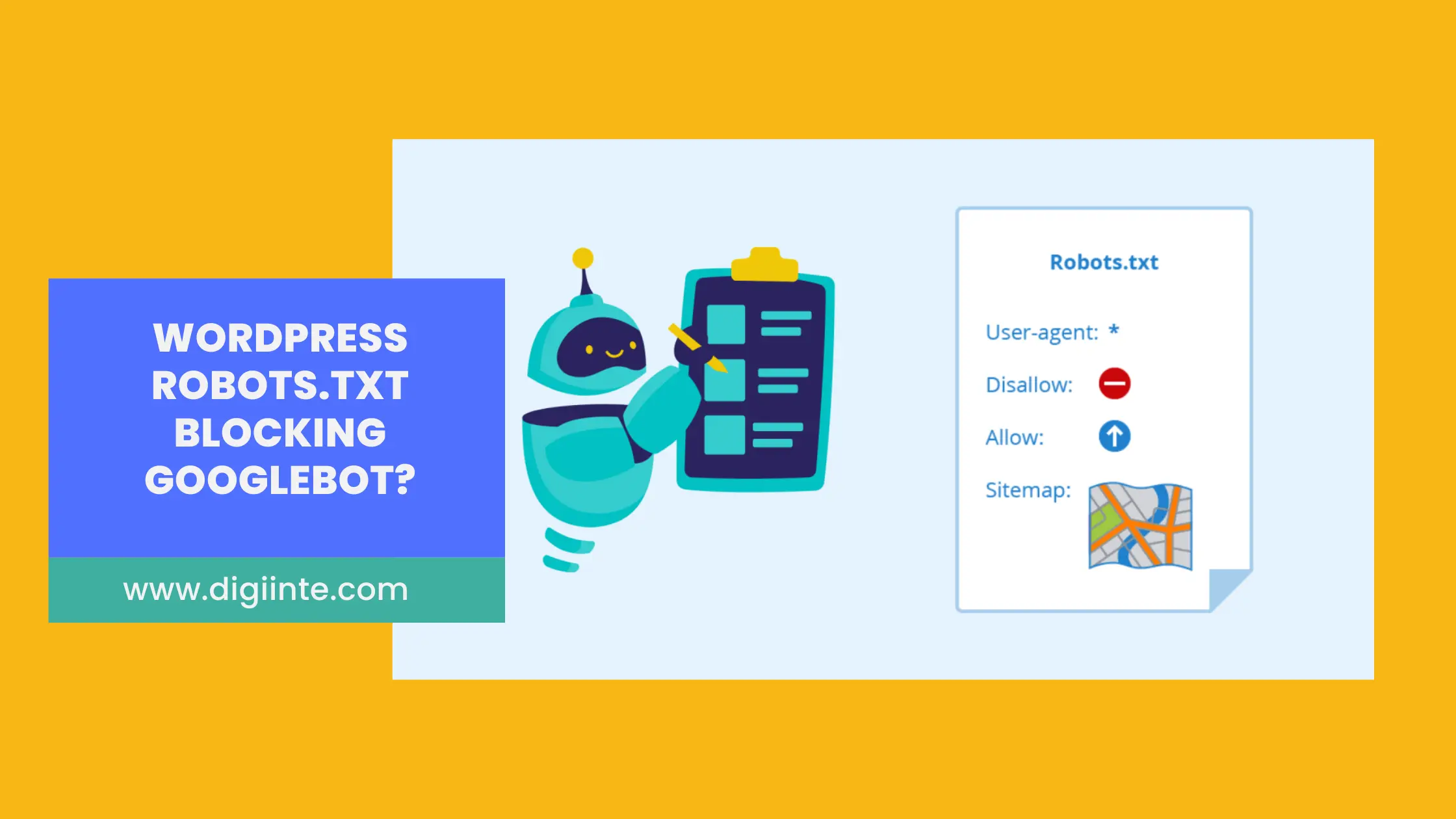
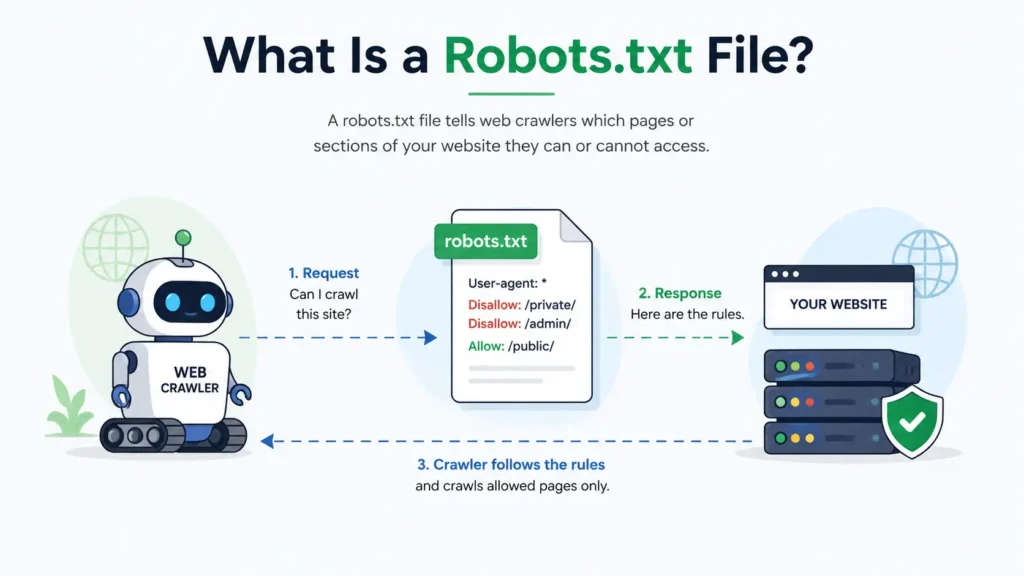
Every website can include a robots.txt file, a small, plain text file sitting at the root of your domain, that gives instructions to search engine crawlers about which parts of the site they should and should not access. When Google Search Console shows “Blocked by robots.txt,” it means Googlebot found a link to that URL somewhere, but your robots.txt file specifically told it not to crawl the page, so it never actually visited or read the content.
This matters because robots.txt controls crawling, not indexing directly. A blocked page usually will not appear in search results, since Google has no content to evaluate, but in some cases a page can still get indexed anyway if enough other sites link to it, appearing with just a bare URL and no real description. That second scenario has its own separate status in Search Console, which is worth understanding clearly before you start making changes.
Blocked by robots.txt vs Indexed, though blocked by robots.txt
These two statuses look similar but call for different fixes, and mixing them up is one of the most common mistakes people make when troubleshooting this issue.
Blocked by robots.txt means Google has not crawled the page at all, and it is not indexed. If this is a page you want ranking, the fix is straightforward, remove the block.
Indexed, though blocked by robots.txt means Google indexed the URL anyway, usually because other pages link to it, even though your robots.txt told it not to crawl the content itself. This status is more of a judgment call. If you genuinely wanted this page hidden, robots.txt alone is not enough, since it does not remove pages already indexed through outside links. If you want it properly indexed with a real title and description, you need to remove the block so Google can actually crawl and read it.
Common WordPress-Specific Causes
General robots.txt advice often misses the causes that are specific to how WordPress sites get built, launched, and maintained.
The “Discourage Search Engines” Setting
WordPress includes a built-in setting under Settings, Reading called “Discourage search engines from indexing this site.” It exists specifically for sites still under development, and when checked, WordPress automatically adds a Disallow rule to your virtual robots.txt file.
The most common way sites end up blocked is simple, this setting gets enabled during development and never gets unchecked at launch. Developers building a site for a client often check this box deliberately while work is in progress, then hand the finished site over without walking through a final pre-launch checklist together, and the setting quietly stays on for weeks or months after the site technically goes live.
Example: A small business owner launches a new WordPress site built by a freelancer, only to discover three months later that the site has never appeared in Google search results at all, traced back to this exact setting still being checked from the development phase.

A Staging Site’s Robots.txt Copied to Production
Development and staging environments are often deliberately blocked from search engines entirely, which is correct behavior for a site not meant to be public yet. Problems start when a site migration or deployment process copies that staging robots.txt file directly to the live production site, carrying the block over without anyone noticing until traffic mysteriously stops growing.
This is especially common with automated deployment tools or one-click staging to production migrations, where every file, including one that should never have made the trip, gets copied over exactly as is.
Example: An agency migrates a client site from a staging subdomain to the live domain using a full site copy tool, and the staging environment’s robots.txt file, which intentionally blocked all crawlers, comes along for the ride and silently blocks the newly launched live site too.
Security Plugins or Firewalls Adding Rules
Some security plugins and firewall services modify robots.txt as part of their protective measures, sometimes blocking specific bot patterns or entire directories more broadly than intended. If you recently installed or reconfigured a security plugin around the time indexing issues started, this is worth checking directly.
These tools often mean well, aggressively blocking anything that looks like a bot to prevent scraping or malicious crawling, but an overly broad rule can accidentally catch Googlebot in the same net meant for genuinely harmful traffic. Our guide on WordPress security plugins covers what these tools typically do, useful context if you suspect one is the culprit here.
Hosting Provider Virtual Robots.txt Files
Some hosting environments generate their own virtual robots.txt file at the server level, separate from anything WordPress or your plugins control directly. This can create confusing situations where the robots.txt file you edit through WordPress does not match what Googlebot actually receives, since the server-level version takes precedence. This is more common with certain managed WordPress hosts that apply their own default configurations, particularly for staging environments or password-protected development sites, and the setting can sometimes persist even after a site is fully launched and password protection is removed.
SEO Plugin Misconfiguration
Plugins like Yoast SEO and Rank Math both include their own robots.txt editing tools and site-wide indexing controls. A setting changed in one of these plugins, sometimes accidentally, sometimes left over from an old configuration, can introduce a block that has nothing to do with the actual robots.txt file contents you might check manually.
Both plugins also include separate per-post and per-page noindex controls, which produce a different, related but distinct issue from a robots.txt block, worth keeping in mind if the affected pages are more scattered than a clean, predictable pattern.
Step by Step Fix
Step 1: Confirm the Issue in Google Search Console
Open Search Console, go to the Pages report under Indexing, and look for “Blocked by robots.txt” in the list of reasons pages are not indexed. Click into it to see the full list of affected URLs.
Step 2: Check the WordPress Reading Settings First
Go to Settings, Reading in your WordPress dashboard and confirm that “Discourage search engines from indexing this site” is unchecked. This single setting resolves a surprising share of these cases and takes seconds to check.
Step 3: View Your Live Robots.txt File Directly
Visit yourdomain.com/robots.txt in a browser to see exactly what Googlebot receives. Look for any “Disallow: /” line, which blocks your entire site, or more specific Disallow rules blocking directories or pages you actually want indexed.
Step 4: Use the URL Inspection Tool for a Specific Page
If only certain pages are affected rather than the whole site, paste the specific URL into Search Console’s URL Inspection tool. It will confirm the exact block and often show which rule in your robots.txt is responsible.
Step 5: Edit the Robots.txt File
If you are using Yoast SEO or Rank Math, both include a built-in robots.txt editor under their tools settings, letting you make changes directly inside WordPress without needing FTP access. Remove or adjust the specific Disallow rule causing the problem, being careful not to remove rules that are intentionally blocking sensitive areas like admin pages.
If your site does not use one of these plugins, or if a physical robots.txt file already exists on your server overriding WordPress’s virtual version, you will need to edit it directly via FTP or your hosting file manager. Connect to your site’s root directory, locate robots.txt, and open it in a plain text editor. A safe, standard configuration for most WordPress sites looks like this, allowing all crawlers while still protecting the admin area:
User-agent: *
Disallow: /wp-admin/
Allow: /wp-admin/admin-ajax.php
A completely open configuration, appropriate once you have confirmed nothing sensitive needs blocking, simply reads:
User-agent: *
Disallow:
Avoid using “Disallow: /” alone, since that single line blocks your entire site from every crawler that respects robots.txt, a mistake that is easy to make and easy to overlook once it is in place.
Step 6: Request Indexing to Confirm the Fix
Once the block is removed, go back to the URL Inspection tool, enter the affected URL, and click Request Indexing. This prompts Googlebot to recrawl the page sooner rather than waiting for its next scheduled visit.
Step 7: Monitor Search Console Over the Following Days
Check back over the next several days to confirm the page moves from “Blocked by robots.txt” to properly indexed. If you are dealing with several pages, our guide on why a WordPress page might be stuck on Discovered, not indexed covers what to do if pages remain unindexed even after the block itself is resolved.
Quick Diagnostic Checklist
| Symptom | Likely Cause | Where to Check |
| Entire site blocked, launched recently | Discourage search engines setting | Settings, Reading |
| Site worked fine, broke after a migration | Staging robots.txt copied to production | yourdomain.com/robots.txt |
| Started after installing a security plugin | Plugin-added Disallow rule | Security plugin settings |
| Robots.txt looks correct but site still blocked | Hosting provider virtual robots.txt | Contact hosting support |
| Only specific pages blocked, not the whole site | SEO plugin per-page or per-section rule | Yoast or Rank Math settings |
How to Prevent This From Happening Again
- Add a launch day checklist that specifically includes unchecking the Discourage search engines setting before going live.
- Review your robots.txt file directly, not just through a plugin’s settings screen, immediately after any site migration or major deployment.
- Check robots.txt after installing or updating any security plugin, especially if it advertises bot-blocking or firewall features.
Set a recurring reminder, monthly or quarterly, to view your live robots.txt file and confirm it still matches your intentions. Our roundup of free SEO tools covers several options for keeping an eye on this alongside your broader technical SEO health.
Frequently Asked Questions
- Why Is My WordPress Page Stuck on Discovered, Not Indexed
- 8 Signs Your Website Has a Technical SEO Problem
- Top 20 Free SEO Tools Every Website Owner Should Use
- 9 Best WordPress Security Plugins to Protect Your Site
Conclusion
A WordPress robots.txt blocking Googlebot is almost always a small, findable cause, a forgotten setting, a leftover staging file, or a security plugin rule, not a sign of something seriously wrong with your site. Check the Discourage search engines setting first, view your live robots.txt file directly, and work through the WordPress-specific causes in this guide before assuming the problem is more complicated than it actually is.
Once fixed, always request indexing to prompt a faster recrawl rather than waiting and hoping Google notices the change on its own.
Ready to check your site? Open yourdomain.com/robots.txt right now in a new tab and confirm it looks the way you actually intend it to.

Behind every post at digiinte.com is a team of experienced SEO analysts and digital growth specialists. Our insights are backed by real data, industry research, and hands-on campaign experience — so you get advice that actually moves the needle.