
Last Updated on May 28, 2026 by Digiinte.com Team
Key Takeaways
✅ Lazy loading delays the loading of images until a visitor scrolls down to see them
✅ It can reduce your initial page load time by 30 to 60 percent on image heavy pages
✅ Google counts lazy loading as a positive signal for Core Web Vitals (LCP and FID)
✅ Most modern Shopify themes already have lazy loading built in
✅ You can enable lazy loading on Shopify without touching any code using apps
✅ Never lazy load above the fold images as it slows down the first visible experience
✅ Lazy loading works best when combined with image compression and WebP format ✅ Enabling lazy loading is one of the fastest and easiest speed wins available to any Shopify store owner
You have probably heard the phrase lazy loading thrown around when people talk about website speed. But what does it actually mean? And more importantly, how do you use it to make your Shopify store faster?
- What is Lazy Loading?
- Why Lazy Loading Matters for Your Shopify Store
- Lazy Loading: Before and After Your Shopify Store
- How to Check if Lazy Loading is Already Enabled on Your Shopify Store
- How to Enable Lazy Loading on Shopify (3 Methods)
- What You Should NEVER Lazy Load
- Lazy Loading Best Practices for Shopify
- Lazy Loading Enablement Checklist
- Frequently Asked Questions (FAQ)
- Final Thoughts: Lazy Loading is One of the Easiest Speed Wins on Shopify
In this guide we are going to break it all down in plain English. No technical jargon. No confusing developer talk. Just a clear explanation of what lazy loading is, why it matters for your store, and step by step instructions for enabling it on Shopify in 2026.
Whether you run a small boutique store or a large eCommerce catalog with thousands of products, lazy loading is one of the simplest and most impactful things you can do to improve your store speed and your customer experience.
Let us get started.
What is Lazy Loading?
Imagine you walk into a library and ask for every single book at once. The librarian would need to go and collect thousands of books before you could start reading even one. That would take forever.
Now imagine you ask the librarian to bring you books one section at a time as you walk through each aisle. You get what you need exactly when you need it. That is the idea behind lazy loading.
In the context of websites and Shopify stores, lazy loading is a technique that delays the loading of images and other media until the user actually scrolls down to see them.
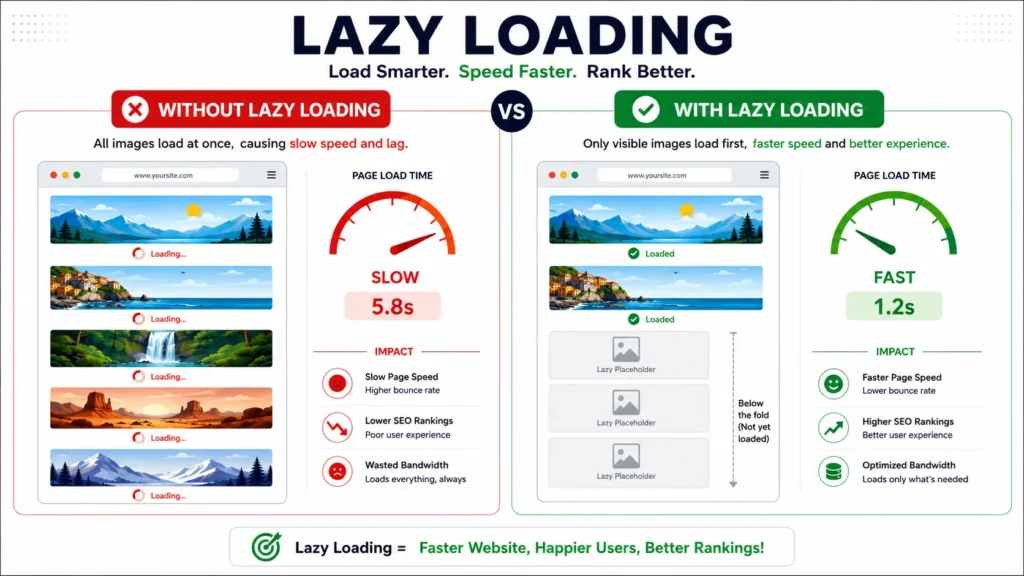
By default, when a visitor lands on your Shopify store, their browser tries to download every single image on the page all at once, even the ones buried at the bottom that nobody has scrolled to yet. With lazy loading enabled, the browser only loads the images currently visible on screen. The rest are loaded on demand as the visitor scrolls down.

Quick Definition Lazy Loading = loading images only when they enter the viewport (the visible part of the screen). The opposite is Eager Loading = loading all images immediately when the page opens, regardless of whether the user sees them.
Why Lazy Loading Matters for Your Shopify Store
Lazy loading is not just a technical trick. It has real, measurable business benefits for your store. Here is why it matters:
1. Faster Initial Page Load
When a visitor first opens your store, the browser only needs to load the images currently on screen instead of all the images on the page. This drastically reduces how much data needs to be downloaded upfront, which means your page becomes interactive much faster.
For a collection page with 48 product images, lazy loading means the browser loads only the first 8 to 12 images that are visible. The other 36 images load later as the customer scrolls. This can cut your initial page load time by 30 to 60 percent on image heavy pages.
2. Better Mobile Performance
Mobile users are particularly sensitive to slow loading pages. They are often on slower mobile data connections and have less processing power than desktop computers. Lazy loading is especially impactful on mobile because it reduces both the amount of data downloaded and the processing work needed to render the page.
Since Google uses mobile first indexing, your mobile speed directly affects your search rankings. To understand the full picture of Shopify speed optimization, check out our guide: How to Improve Shopify Store Speed: 10 Proven Optimization Tips
3. Improved Core Web Vitals Scores
Google measures your store using Core Web Vitals, which are a set of performance metrics that determine how good your page experience is. Lazy loading directly improves two of the most important metrics:
- LCP (Largest Contentful Paint): Lazy loading reduces the amount of work the browser does during initial load, which can improve your LCP score
- INP (Interaction to Next Paint): Less loading work upfront means the browser is more responsive to user interactions from the start
4. Reduced Bandwidth Usage
Many visitors browse stores without scrolling all the way to the bottom. With traditional eager loading, their browser downloads images they never even see. Lazy loading ensures you only serve images that customers actually view, reducing unnecessary bandwidth costs for both your store and your customers.
5. Higher Conversion Rates
Research from Google shows that a one second improvement in page load time can increase conversions by up to 27 percent on mobile. A faster first impression keeps visitors on your store longer and moves them through the buying journey more smoothly.
Lazy Loading: Before and After Your Shopify Store
Here is a practical look at how lazy loading changes the numbers for a typical Shopify collection page:
| Metric | Without Lazy Loading | With Lazy Loading |
| Initial Images Loaded | All 48 product images | First 8 to 12 visible images |
| Initial Data Downloaded | 3.2 MB to 5.8 MB | 0.6 MB to 1.2 MB |
| Time to Interactive | 4.5 to 7 seconds | 1.8 to 3 seconds |
| LCP Score | Poor (above 4 seconds) | Good (under 2.5 seconds) |
| Mobile Speed Score | 30 to 45 | 65 to 80 |
| Bandwidth Saved | 0 percent | 40 to 70 percent |
Note: These figures are approximate averages based on typical Shopify collection pages. Results vary based on image size, theme, and number of products.
👉 Lazy loading works best when your images are already properly optimised. If your images are still large and uncompressed, lazy loading will help but will not fix everything. Read our complete guide: How to Optimize Images for Shopify (Formats, Compression and Lazy Loading)
How to Check if Lazy Loading is Already Enabled on Your Shopify Store
Before enabling lazy loading, check whether your Shopify theme already has it built in. Here is how to do it quickly:
Method 1: Use Google Chrome DevTools
- Open your Shopify store in Google Chrome
- Right click anywhere on the page and select Inspect
- Click the Network tab at the top of the DevTools panel
- Reload the page by pressing Ctrl plus R (Windows) or Cmd plus R (Mac)
- Watch the Network tab as you scroll down the page
- If new image requests appear in the Network tab as you scroll, lazy loading is working
- If all images load immediately on page open without any scrolling, lazy loading is NOT enabled
Method 2: Check Your Theme Code
In your Shopify Admin, go to Online Store then Themes, then click Edit Code. Open your theme.liquid or product template files and search for the text loading=”lazy”. If you find it on image tags, your theme already supports lazy loading.
Method 3: Run a PageSpeed Insights Test
Go to pagespeed.web.dev and enter your store URL. In the Opportunities section, look for Defer offscreen images. If this appears as a recommendation, lazy loading is not yet enabled on your store.
How to Enable Lazy Loading on Shopify (3 Methods)
There are three ways to enable lazy loading on Shopify. We have listed them from easiest to most advanced:
Method 1: Use a Modern Shopify Theme (Easiest)
The easiest way to get lazy loading is to use a modern Shopify theme that already has it built in. Shopify’s free Dawn theme, which was released in 2021 and has been regularly updated, includes native lazy loading out of the box. Other modern premium themes like Impulse, Prestige, and Pipeline also include lazy loading by default.
To check if your theme supports lazy loading, look in the theme documentation or contact the theme developer. If your current theme is more than three or four years old and has not been updated, it is worth considering an upgrade just for the performance benefits alone.
- ✅ Best for: Stores willing to switch or upgrade their theme
- ✅ Difficulty: Easy
- ✅ Cost: Free (for Dawn) or the cost of a premium theme
Method 2: Use a Shopify App (No Code Required)
If you do not want to change your theme, a Shopify app is the next easiest option. Several popular apps can enable lazy loading on your store without any code editing:
| App Name | What It Does |
| TinyIMG | Enables lazy loading alongside image compression and WebP conversion |
| Swift | One click lazy loading enable with before and after speed score |
| Hyperspeed | Advanced lazy loading with script deferral and CDN |
| Booster SEO | Lazy loading as part of a full speed and SEO optimization suite |
| Plug In Speed | Granular lazy loading control per page type |
To install any of these apps, go to the Shopify App Store, search for the app name, click Add App, and follow the setup instructions. Most apps will enable lazy loading automatically once installed.
- ✅ Best for: Store owners who want results without touching code
- ✅ Difficulty: Very easy
- ✅ Cost: Free plans available for most apps
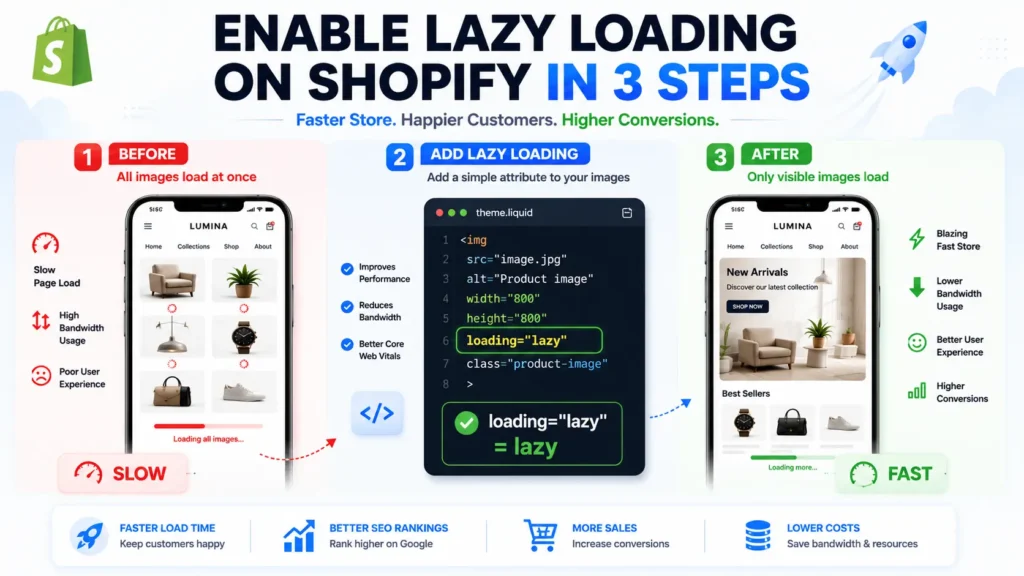
Method 3: Add loading equals lazy to Your Theme Code (Advanced)
If you are comfortable editing Shopify Liquid code, you can add lazy loading manually by adding loading=”lazy” to image tags in your theme files. This is the native HTML5 method and is supported by all modern browsers including Chrome, Firefox, Safari and Edge.
Code Example Find this in your theme files: <img src=”{{ product.featured_image | img_url: ‘800x’ }}” alt=”{{ product.title }}”> Change it to: <img src=”{{ product.featured_image | img_url: ‘800x’ }}” alt=”{{ product.title }}” loading=”lazy”> That single attribute is all it takes to enable native lazy loading on that image.
The most common files to update are product.liquid, collection.liquid, and any template files that display images in a loop. Always back up your theme before making any code changes.
- ✅ Best for: Developers or store owners comfortable with Liquid code
- ✅ Difficulty: Intermediate
- ✅ Cost: Free
What You Should NEVER Lazy Load
This is one of the most important points in this entire guide. Not all images should be lazy loaded. There is one critical rule you must follow:
Critical Rule: Never Lazy Load Above the Fold Images Above the fold images are the images visible on screen without any scrolling. These include your hero banner, the first product image on a collection page, and your logo. If you lazy load these images, your visitor will land on your page and see blank empty spaces where images should be. The images will then load a moment later, causing the page to jump and shift (this is called layout shift and it kills your CLS score). Only lazy load images that are BELOW the fold. Images above the fold should always load immediately (eagerly).
Lazy Loading Best Practices for Shopify
Follow these best practices to get the maximum benefit from lazy loading on your Shopify store:
- Always set width and height attributes on your image tags. This lets the browser reserve the correct space before the image loads and prevents layout shift (CLS)
- Combine lazy loading with a CDN. Shopify already delivers images through a CDN but pairing lazy loading with CDN delivery gives you the best of both worlds
- Use WebP format for all images. WebP files are 25 to 35 percent smaller than JPEG and load even faster when combined with lazy loading
- Clean up unused app scripts before enabling lazy loading. Leftover scripts from deleted apps can interfere with lazy loading performance
- Test on real mobile devices after enabling. Use your phone on a 4G or 5G connection to confirm the improvement feels real
- Always run a PageSpeed Insights test before and after to measure the actual improvement in numbers
- Re check your lazy loading setup after every theme update. Theme updates can sometimes overwrite your code changes
👉 Did you know that leftover scripts from deleted apps can seriously impact your speed improvements? Before enabling lazy loading, read our full guide on cleaning up your store: How to Remove Unused Apps and Scripts from Your Shopify Store

Lazy Loading Enablement Checklist
Use this checklist to make sure you have set up lazy loading correctly on your Shopify store:
- ☑️ Check if your current theme already supports lazy loading
- ☑️ Run a PageSpeed Insights test and note your current score
- ☑️ Choose your method: theme, app, or manual code
- ☑️ Back up your theme before making any code changes
- ☑️ Enable lazy loading on all below the fold images
- ☑️ Confirm that above the fold hero images are NOT lazy loaded
- ☑️ Add width and height attributes to all images to prevent layout shift
- ☑️ Compress all images with TinyPNG or an optimization app
- ☑️ Convert images to WebP format if possible
- ☑️ Run a PageSpeed Insights test after enabling and compare scores
- ☑️ Test on mobile to confirm the improvement feels real
Frequently Asked Questions (FAQ)
Final Thoughts: Lazy Loading is One of the Easiest Speed Wins on Shopify
Lazy loading is not some complicated developer trick reserved for big enterprise stores. It is a simple, proven technique that any Shopify store owner can implement today, with or without coding skills.
Whether you use a modern theme with it built in, install an app that does it automatically, or add a single attribute to your image tags, the result is the same: faster page loads, better Google rankings, improved Core Web Vitals scores, and a smoother shopping experience for your customers.
The best part? It is free to implement and takes only a few minutes to set up.
Start with a PageSpeed Insights test right now to see where your store stands. Then choose the method that best fits your comfort level and get lazy loading working for you today.
🔗 Related Reads:
• How to Improve Shopify Store Speed: 10 Proven Optimization Tips
• How to Optimize Images for Shopify (Formats, Compression and Lazy Loading)
• How to Add FAQ Schema in Shopify
• How to Create a Dynamic FAQ Section on Shopify Collection Pages
