

Last Updated on May 28, 2026 by Digiinte.com Team
Key Takeaways
✅ Minification removes unnecessary characters from CSS, JavaScript and HTML without changing how your store works
✅ Unminified code is one of the top reasons for poor Shopify speed scores and failed Core Web Vitals
✅ Minifying your code can reduce file sizes by 20 to 60 percent and improve load times by 1 to 3 seconds
✅ Shopify does not automatically minify all your theme code so you need to do it manually or with a tool
✅ You can minify Shopify code without touching a single line yourself using the right apps
✅ Always back up your theme before making any code changes
✅ Minification works best when combined with lazy loading, image optimization and unused script removal
✅ After minifying, always test your store thoroughly to make sure nothing has broken
Your Shopify store might look great. Your products might be amazing. Your prices might be competitive. But if your pages are loading slowly, you are losing customers before they even get a chance to see any of that.
One of the most overlooked reasons for slow Shopify stores is bloated code. Every CSS file, JavaScript file and HTML page on your store contains unnecessary characters that add weight without adding value. Spaces, tabs, line breaks, comments and long variable names all make your code files larger than they need to be.
The process of removing all that unnecessary clutter is called minification. And it is one of the most effective technical speed improvements you can make for your Shopify store.
In this guide we are going to explain exactly what minification is, why it matters for your store speed and SEO, and walk you through exactly how to minify CSS, JavaScript and HTML on Shopify in 2026. Whether you are a complete beginner or a seasoned store owner, this guide has everything you need.
What is Minification
When developers write code, they write it in a way that is easy for humans to read. They add spaces between lines, write long descriptive names for variables, add comments to explain what each section does, and use indentation to show structure. This all makes the code readable and maintainable.
But here is the thing. Your visitors’ browsers do not care about any of that. The browser only needs the instructions inside the code. The spaces, comments, line breaks and long names are completely invisible to the browser but they still take up space and add to the file size that gets downloaded.
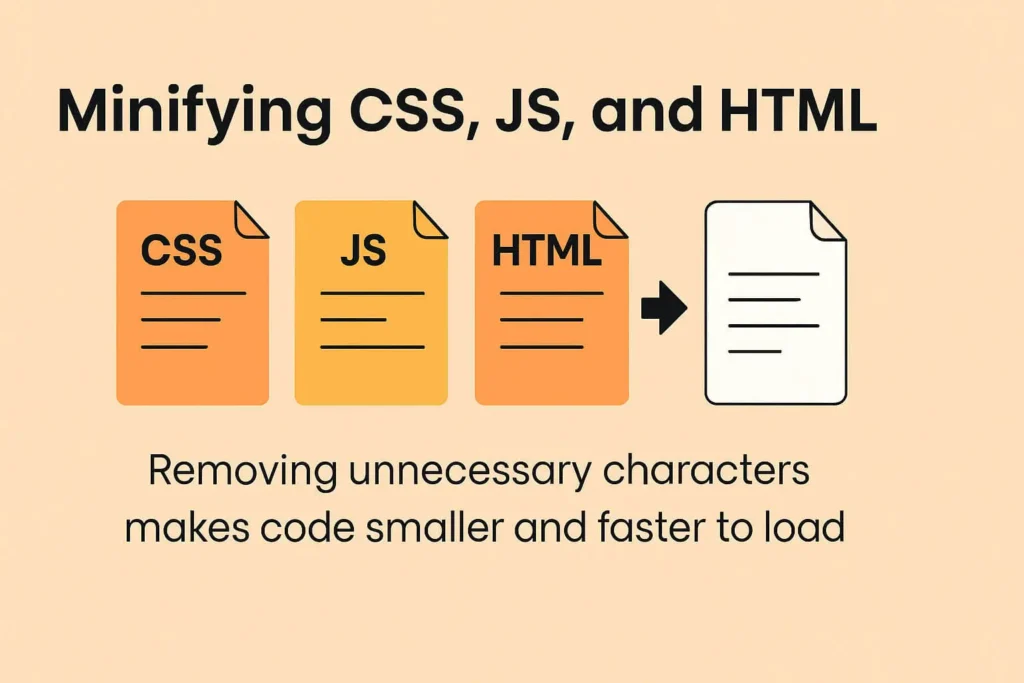
Minification is the process of removing all that unnecessary bloat from your code files without changing what the code actually does. The end result is a much smaller file that loads faster but works exactly the same way.
Simple Before and After Example
BEFORE minification (human readable, 187 characters):
/* Main button style */
.btn {
background-color: #0071e3;
color: white;
padding: 12px 24px;
border-radius: 6px;
}
AFTER minification (same result, 57 characters):
.btn{background-color:#0071e3;color:#fff;padding:12px 24px;border-radius:6px} Same result. 70 percent smaller. Loads faster.
Why Minifying Code Matters for Your Shopify Store
Minification is not just a technical housekeeping exercise. It has real, measurable benefits for your store performance and your business results.
Faster Page Load Times
Every kilobyte of code your browser downloads takes time. When you minify your CSS and JavaScript files, you can reduce their size by 20 to 60 percent. On a typical Shopify store with multiple CSS files and JavaScript files, this can shave one to three full seconds off your page load time. That is enormous.
Better Shopify Speed Score
Shopify gives every store a speed score based on Google’s Lighthouse tool. One of the most common recommendations in Lighthouse is to minify CSS and JavaScript. Fixing this issue alone can push your speed score up by 10 to 20 points, which makes a real difference in both rankings and conversions.
Improved Core Web Vitals
Google measures your store with Core Web Vitals scores, and large unminified code files directly hurt two key metrics. First they increase your LCP (Largest Contentful Paint) time because the browser has to download and parse more data before rendering the page. Second they increase FID and INP scores because heavy JavaScript files block the browser from responding to user clicks and taps.
👉 Minification is just one part of the speed puzzle. For a full overview of everything you can do to speed up your store, read our complete guide: How to Improve Shopify Store Speed: 10 Proven Optimization Tips
Better SEO Rankings
Page speed is a confirmed Google ranking factor. Faster stores rank higher than slower stores all else being equal. Minification contributes to a faster store which contributes to better Google rankings and more organic traffic to your products.
Higher Conversion Rates
Research from Google found that a one second improvement in mobile load time can improve conversions by up to 27 percent. Minification is one of the most direct ways to achieve that kind of improvement without spending a single dollar on ads or redesigning your entire store.

What Can Be Minified on Your Shopify Store
There are three main types of code files on your Shopify store that can and should be minified:
| File Type | What it Controls | Typical Size Reduction |
| CSS Files | Visual design, colours, fonts, layout and spacing | 20 to 50 percent |
| JavaScript Files | Interactive features, popups, sliders, app functionality | 25 to 60 percent |
| HTML Files | Page structure and content markup | 10 to 30 percent |
| Liquid Templates | Shopify template code that generates pages | 10 to 20 percent |
Of these, CSS and JavaScript typically offer the biggest size reductions and the most significant speed improvements. HTML minification is helpful but usually has a smaller impact.
How to Minify CSS JavaScript and HTML on Shopify
There are three main ways to minify your Shopify code. We have listed them from easiest to most advanced so you can choose the approach that suits your comfort level.
Method 1: Use a Shopify Speed App (Easiest, No Code Required)
The easiest and most recommended way to minify your Shopify code is to use a dedicated speed optimization app. These apps handle CSS, JavaScript and HTML minification automatically without you needing to touch any code at all.
Best Apps for Minification on Shopify:
| App Name | What It Minifies |
| Hyperspeed | CSS, JavaScript, HTML plus script deferral and CDN integration |
| Plug In Speed | CSS and JavaScript with per page granular control |
| Swift | JavaScript deferral and CSS optimization with one click setup |
| Booster SEO and Image Optimizer | Includes code minification alongside image and SEO tools |
| PageSpeed Optimizer by Shop Sherif | CSS, JavaScript and render blocking resource removal |
To use any of these apps, go to the Shopify App Store, search for the app name, install it and follow the setup wizard. Most apps will scan your store and apply minification automatically within a few minutes.
- ✅ Best for: All store owners especially beginners
- ✅ Difficulty: Very easy, no coding required
- ✅ Cost: Free trials available on most apps, paid plans from $10 to $39 per month
Method 2: Use Online Minification Tools (Manual but Free)
If you prefer a free hands on approach and are comfortable copying and pasting code, you can use online minification tools to manually minify your theme files.
Step by Step Process:
- Go to your Shopify Admin and click Online Store then Themes
- Click the three dot menu next to your live theme and select Duplicate to create a backup
- Go back to your theme and click Edit Code
- Open the CSS or JavaScript file you want to minify from the Assets folder
- Copy all the code from the file
- Open an online minification tool (see list below)
- Paste your code into the tool and click Minify
- Copy the minified output
- Go back to your Shopify theme editor, delete the original code and paste the minified version
- Click Save and test your store thoroughly
Best Free Online Minification Tools:
- CSS Minifier (cssminifier.com): Paste your CSS and get minified output instantly
- JavaScript Minifier (javascript-minifier.com): Free JS minification with error checking
- HTML Minifier (htmlminifier.com): Strips whitespace and comments from HTML
- Toptal CSS Minifier (toptal.com/developers/cssminifier): Clean and reliable CSS minification
- Minify Code (minifycode.com): Handles CSS, JavaScript and HTML in one place
- ✅ Best for: Store owners who want free options and are comfortable with basic code editing
- ✅ Difficulty: Intermediate
- ✅ Cost: Free
Method 3: Use Shopify CLI or Build Tools (Advanced Developers Only)
If you or your developer manages your Shopify theme using the Shopify CLI and a local development environment, you can integrate automated minification into your build process using tools like Webpack, Gulp or Vite. These tools can automatically minify all your CSS and JavaScript files every time you push a theme update.
This is the most efficient long term approach for large stores with active development teams but it requires developer knowledge and is outside the scope of this guide for most store owners.
- ✅ Best for: Developers managing themes locally with version control
- ✅ Difficulty: Advanced
- ✅ Cost: Free (open source tools)
Important Things to Do Before You Minify
Minification is generally safe but there are a few important steps you should take before making any changes to your theme code:
Always Do These Before Minifying Back up your theme first. Go to Online Store then Themes, click the three dot menu and select Duplicate. This takes 30 seconds and can save you hours if something goes wrong. Remove unused app scripts before minifying. Minifying leftover code from deleted apps wastes time and keeps dead weight in your store. Clean first, then minify. Test on mobile and desktop after every change. Minification errors can sometimes break interactive features like dropdown menus, sliders or popup forms. Run a speed test before you start. Record your PageSpeed score and Shopify speed score so you can measure the actual improvement after minifying.
👉 Before minifying, make sure your store is clean from unused app code. Minifying leftover scripts just makes them load faster but they still slow things down. Read our guide on How to Remove Unused Apps and Scripts from Your Shopify Store before starting.
What to Expect: Before and After Minification
Here is what typical results look like for a mid size Shopify store after proper CSS and JavaScript minification:
| Metric | Before Minification | After Minification |
| Total CSS File Size | 320 KB | 148 KB |
| Total JavaScript File Size | 580 KB | 265 KB |
| Page Load Time (desktop) | 4.2 seconds | 2.8 seconds |
| Page Load Time (mobile) | 6.1 seconds | 3.4 seconds |
| Shopify Speed Score | 28 to 45 | 55 to 72 |
| Google PageSpeed Score | 40 to 55 | 65 to 80 |
| Render Blocking Resources | 4 to 8 files | 0 to 2 files |
Note: Results vary significantly based on your theme, installed apps, and how many images your store uses. These are representative averages from typical mid size Shopify stores.
👉 For even bigger speed gains, combine minification with image optimisation. Uncompressed images are often the single biggest performance issue. Read our guide: How to Optimize Images for Shopify (Formats, Compression and Lazy Loading)
Combine Minification with Lazy Loading for Maximum Speed
Minification and lazy loading work together beautifully as a speed optimisation team. Here is why:
- Minification reduces the file size of your CSS and JavaScript so the browser downloads and parses them faster
- Lazy loading reduces the number of images loaded upfront so the browser has less work to do on first paint
- Together they tackle both the code layer and the media layer of your store performance
- Stores that implement both minification and lazy loading typically see a combined improvement of 2 to 4 seconds in page load time
👉 Not yet using lazy loading on your Shopify store? Learn how to enable it in minutes with our step by step guide: What is Lazy Loading and How to Enable It on Shopify
Shopify Code Minification Checklist
Use this checklist to make sure you have covered every step of the minification process:
- ☑️ Duplicate your live theme as a backup before making any changes
- ☑️ Run a PageSpeed Insights test and note your current scores
- ☑️ Remove any unused app scripts and delete unused apps from your store
- ☑️ Choose your minification method: app, online tool or build process
- ☑️ Minify all CSS files in your theme Assets folder
- ☑️ Minify all JavaScript files in your theme Assets folder
- ☑️ Check if your theme Liquid files can be cleaned up
- ☑️ Test your store on desktop and mobile after each change
- ☑️ Check all interactive elements: menus, sliders, popups and forms
- ☑️ Run a PageSpeed Insights test after and compare your scores
- ☑️ Combine with image optimisation and lazy loading for maximum impact
Frequently Asked Questions (FAQ)
Final Thoughts: Minification is One of the Highest Impact Speed Fixes on Shopify
If your Shopify store is suffering from a low speed score or failing Core Web Vitals, unminified CSS and JavaScript is almost certainly part of the problem. And the best part is that fixing it does not require expensive developers or a complete store rebuild.
You can start today. Install a speed app, run it on your store, and watch your speed score climb. Or if you prefer full control, use one of the free online minification tools to manually tidy up your theme files one by one.
Just remember to always back up your theme first, test after every change, and combine minification with other speed wins like image compression, lazy loading and unused script removal. Together these improvements compound into a dramatically faster, better converting store. Your customers will notice the difference. And so will Google.
🔗 Related Reads:
• How to Improve Shopify Store Speed: 10 Proven Optimization Tips
• How to Optimize Images for Shopify (Formats, Compression and Lazy Loading)
• What is Lazy Loading and How to Enable It on Shopify
• How to Remove Unused Apps and Scripts from Your Shopify Store
• How to Add FAQ Schema in Shopify
• How to Create a Dynamic FAQ Section on Shopify Collection Pages
