
Last Updated on November 21, 2026 by Digiinte.com Team
Heavy images are one of the most common reasons a website feels slow. A single uncompressed photo from a phone can weigh several megabytes, and a page with a dozen of them can take a long time to load on mobile data. A free image compressor fixes this by shrinking the file while keeping the picture looking good. The tricky part is choosing one, because free plans differ a lot in file size caps, batch sizes, and monthly quotas. This guide compares ten free image compressors, with free limits, prices, pros, and cons, so you can pick the one that fits your site.
- Key Takeaways
- What Is an Image Compressor?
- How to Choose a Free Image Compressor
- Free Image Compressors at a Glance
- The 10 Best Free Image Compressors for Websites
- 1. DigiInte JPG to WebP Converter: Best for Shrinking Photos by Converting to WebP
- 2. TinyPNG: Best Online Compressor for Quick Batches
- 3. Squoosh: Best for Quality Control and Privacy
- 4. Caesium: Best Free Desktop Compressor for Windows, Mac, and Linux
- 5. ImageOptim: Best Free Mac Compressor
- 6. XnConvert: Best for Batch Resizing and Compressing Together
- 7. ShortPixel: Best for Automatic Compression on WordPress
- 8. Imagify: Best for Small Sites on WordPress
- 9. Kraken: Best for Small Images and Developer Workflows
- 10. Adobe Express: Best for Resizing and Compressing in One Tool
- How to Compress Images for Your Website Step by Step
- Frequently Asked Questions
- Pick Your Free Image Compressor and Speed Up Your Site
Key Takeaways
- Best for batches online: TinyPNG’s free web tool takes 20 images at a time, up to 5 MB each.
- Best for privacy and control: Squoosh runs in your browser, so your images never leave your device.
- Best for big folders: Caesium, ImageOptim, and XnConvert run on your own computer with no upload.
- Best for WordPress: ShortPixel and Imagify compress uploads automatically, each with a small free allowance.
- Smaller still: Converting to WebP can cut files about 25 to 34 percent compared with JPG at similar quality, based on Google’s testing.
What Is an Image Compressor?
An image compressor rewrites a picture so it takes fewer bytes, usually without changing its pixel size. Lossy compression removes small details your eye barely notices and gives the biggest savings. Lossless compression keeps every pixel and only removes extra data, so the savings are smaller. Compression is different from resizing, which changes the pixel dimensions of the image.
How to Choose a Free Image Compressor
- File size cap. Some free tools reject large files. Kraken’s free web interface stops at 1 MB per file, while TinyPNG accepts 5 MB per image.
- Batch size. Check how many images you can process at once, and whether a large job needs several rounds.
- Monthly quotas. WordPress services such as Imagify and ShortPixel count usage per month, so a busy site can run out.
- Privacy. Browser and desktop tools process files on your device. Online tools upload your images to a server.
- Formats. For modern sites, look for WebP support, since it makes files smaller than JPG.
Free Image Compressors at a Glance
| Tool | Type | Free plan and key limits |
| DigiInte JPG to WebP | Browser converter | Free, up to 5 files at a time, no upload |
| TinyPNG | Online tool and API | 20 images per session, 5 MB each. API gives 500 free compressions per month |
| Squoosh | Browser app | Free and open source, one image at a time, no upload |
| Caesium | Desktop app | Free and open source, no file size limits |
| ImageOptim | Mac app | Free and open source, lossless, unlimited batches |
| XnConvert | Desktop batch tool | Free for private, educational, and non profit use |
| ShortPixel | WordPress plugin and service | 100 free credits per month |
| Imagify | WordPress plugin and app | 20 MB per month, 2 MB per image |
| Kraken | Online tool and API | Free web tool up to 1 MB per file, 20 files per batch |
| Adobe Express | Online resizer and compressor | Free, files up to 40 MB, no credit card |
The 10 Best Free Image Compressors for Websites
1. DigiInte JPG to WebP Converter: Best for Shrinking Photos by Converting to WebP
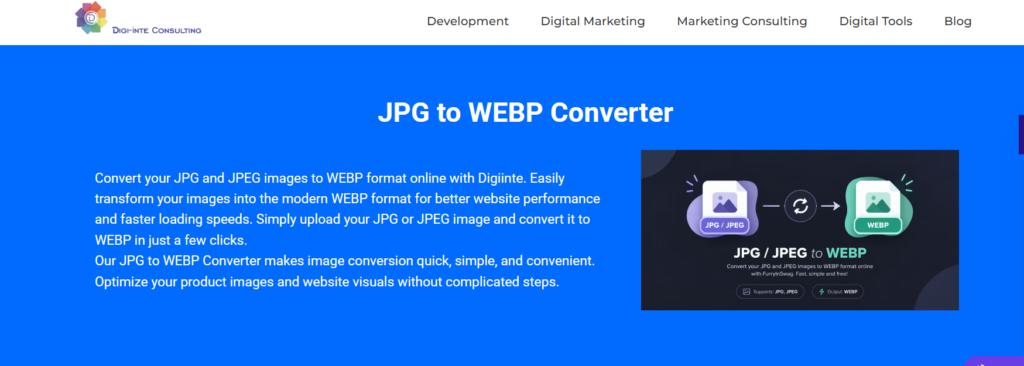
DigiInte’s JPG to WebP converter is not a classic compressor, but it shrinks your photos in a very effective way: it converts them to WebP, a lighter format. It runs in your browser, so files are never uploaded to a server. You can add up to 5 JPG or JPEG files at a time, set the quality (the default is 80), and cap the width at 1920 px or 1280 px, or keep the original size. Lower quality and a smaller width both reduce the file size further.
- Price: Free.
- Best for: Bloggers and store owners who want lighter website photos with no software to install.
- Website: digiinte.com/digital-marketing-tools/jpg-to-webp/
Pros
- Converts to WebP, which is lighter than JPG at similar quality
- Adjustable quality and maximum width
- No upload, so images stay private on your device
Cons
- Limited to 5 files per batch
- Accepts JPG and JPEG files only, so PNG files need a separate tool
For logos and graphics with transparent backgrounds, DigiInte also offers a PNG to WebP converter.
2. TinyPNG: Best Online Compressor for Quick Batches
TinyPNG is the best known online image compressor. Its free web tool takes up to 20 images at a time, each up to 5 MB, and it works with AVIF, WebP, PNG, and JPEG files. It can also convert up to 3 images per session between formats, and it turns HEIC uploads into JPG automatically. Developers can use its API, which includes 500 free compressions per month with no payment method.
- Price: Free web tool. The API is free for 500 compressions per month, then $0.009 per compression.
- Best for: Anyone compressing a batch of web images quickly, with no setup.
- Website: tinypng.com/
Pros
- Generous free web tool with 20 images per session
- Supports AVIF, WebP, PNG, and JPEG
- API with 500 free compressions a month for automation
Cons
- Files are uploaded to a server, with a stated retention of up to 48 hours
- The free web tool cannot resize, since resizing is an API feature
- A 200 image job takes ten sessions, and each image is capped at 5 MB

3. Squoosh: Best for Quality Control and Privacy
Squoosh is a free, open source image tool from the Google Chrome team. It runs entirely in your browser, so your images never leave your device, and it has no account, fee, or stated file limit. You see the original and the compressed result side by side and can tune the quality until it looks right. It supports modern formats such as WebP, AVIF, and MozJPEG, so you can test which one gives the smallest file.
- Price: Free and open source.
- Best for: Hero banners and other key images where you want to fine tune quality.
- Website: squoosh.app/
Pros
- Side by side preview with a quality slider
- Private, because processing runs on your device
- Supports WebP, AVIF, and MozJPEG
Cons
- Works on one image at a time, so it is slow for big batches
- More settings to learn than a one click tool

4. Caesium: Best Free Desktop Compressor for Windows, Mac, and Linux
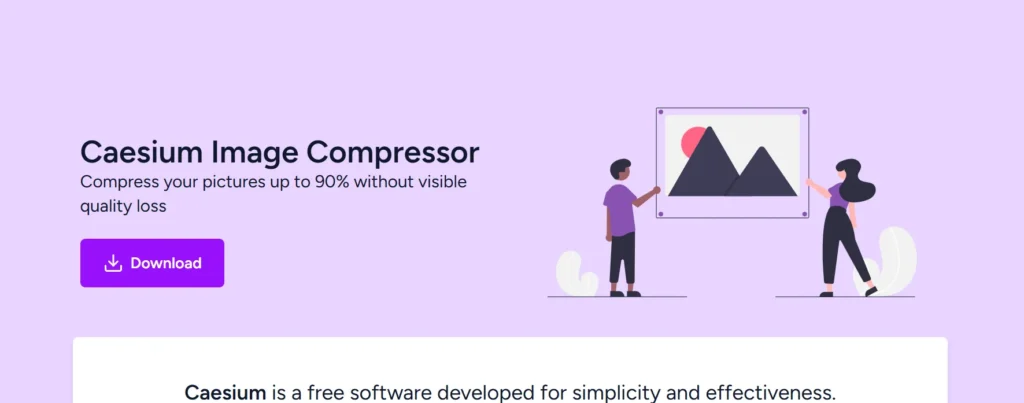
Caesium is free image compression software from SaeraSoft. It runs as a desktop app on Windows, Mac, and Linux, and it also comes as an online tool and a command line utility. It offers both lossy and lossless compression, handles batches, and has no file size limits. Because it runs on your computer, your images are not uploaded anywhere.
- Price: Free. No paid tiers are shown on its site.
- Best for: People who compress large folders of photos offline.
- Website: saerasoft.com/caesium/
Pros
- Free and open source with no paid tiers
- Batch compression with no file size limits
- Lossy and lossless modes on all major systems
Cons
- Needs a download and install for the desktop app
- Fewer modern format options than Squoosh
5. ImageOptim: Best Free Mac Compressor
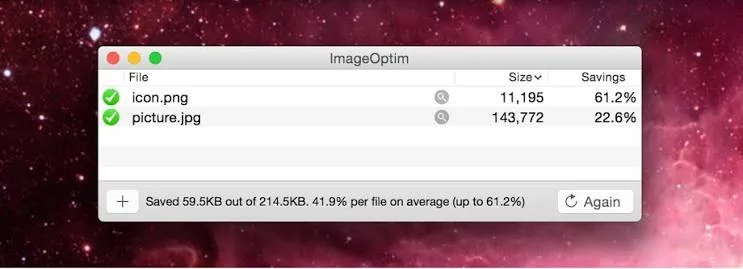
ImageOptim is a free, open source image optimizer for macOS. You drag images onto the app, and it applies several lossless optimization techniques and removes invisible metadata such as camera information. It handles batches with no limit and runs entirely on your Mac. Because it focuses on lossless compression, the quality stays identical, but the savings are smaller than with lossy tools.
- Price: Free and open source.
- Best for: Mac users who want safe, lossless optimization with drag and drop.
- Website: imageoptim.com/
Pros
- Free, open source, and unlimited batches
- Lossless, so quality does not change
- Removes extra metadata to save space
Cons
- Mac only
- Lossless savings are smaller than lossy tools such as Squoosh or TinyPNG
6. XnConvert: Best for Batch Resizing and Compressing Together
XnConvert is a free batch image converter for Windows, macOS, and Linux. It supports more than 500 formats, including WebP, and can resize, rotate, and compress many files in a single pass. Its maker says there is no watermark and no limit on the number of files. The license is free for private, educational, and non profit use, and companies need a paid license that starts at about 15 euros.
- Price: Free for private, educational, and non profit use. Commercial use starts at about 15 euros.
- Best for: Large folders that need resizing and compressing in one step.
- Website: www.xnview.com/en/xnconvert/
Pros
- No file count limit and no watermark
- Resize, convert, and compress in one pass
- Works offline on Windows, Mac, and Linux
Cons
- Business use needs a paid license
- More options than a simple compressor, so it takes time to learn

7. ShortPixel: Best for Automatic Compression on WordPress
ShortPixel is an image optimization plugin and service. Once it is set up on WordPress, it can compress new uploads, bulk optimize your existing media library, and serve WebP or AVIF versions of your images. It offers several compression modes, including a glossy mode designed to keep images looking sharp. The free plan includes 100 credits per month, which covers a low traffic blog but runs out quickly on an active site.
- Price: Free plan with 100 credits per month. Unlimited plans start at $9.99 per month.
- Best for: WordPress sites that want set and forget optimization.
- Website: shortpixel.com/
Pros
- Automatic compression for new and existing images
- Lossy, glossy, and lossless modes
- Serves WebP and AVIF versions
Cons
- Free credits go fast, since each image size uses credits
- Images are processed on its servers, and it needs a free account

8. Imagify: Best for Small Sites on WordPress
Imagify is an image optimization plugin and web app from the team behind WP Rocket. Its free plan gives you 20 MB of compression per month, which its pricing page puts at about 200 images, with a 2 MB limit per image. If your images are larger, resize them first. The Growth plan adds 500 MB per month and costs $4.99 per month billed yearly, or $5.99 billed monthly.
- Price: Free plan with 20 MB per month. Growth costs $4.99 per month billed yearly. Infinite costs $9.99 per month billed yearly.
- Best for: Small blogs that publish a steady stream of small images.
- Website: imagify.io/
Pros
- Simple WordPress plugin and web app
- Clear monthly quota of about 200 images
- Low cost paid plans
Cons
- 2 MB cap per image on the free plan
- Only 20 MB of free compression per month
- Resizing is not described on its pricing page, so resize first

9. Kraken: Best for Small Images and Developer Workflows
Kraken is an image optimization service with a web interface and an API. Its free web tool compresses files in batches of up to 20, but it rejects any file over 1 MB. That limit rules out most camera photos, so it suits small images such as icons and thumbnails. Paid plans add larger files, resizing, and format conversion in the PRO web interface.
- Price: Free web tool. The Micro plan costs $5 per month or $50 per year and includes a 500 MB monthly quota.
- Best for: Small images, or developers who want an API for automated optimization.
- Website: kraken.io/
Pros
- Batch of 20 files in the free web tool
- Affordable Micro plan for steady volume
- API for automated workflows
Cons
- Free web interface rejects files over 1 MB
- Resizing is a PRO feature

10. Adobe Express: Best for Resizing and Compressing in One Tool
Adobe Express offers a free image resize tool that also compresses. It accepts files up to 40 MB, says it can compress to a size you choose, and requires no credit card. That makes it useful when one photo is both too large in pixels and too heavy in file size. The free plan also includes cloud storage, and Premium costs $9.99 per month.
- Price: Free. Premium costs $9.99 per month with no annual commitment.
- Best for: Non developers who need to resize and compress the same photo for a post, banner, or upload form.
- Website: www.adobe.com/express/feature/image/resize
Pros
- Resizes and compresses in one place
- Accepts files up to 40 MB
- No credit card required
Cons
- Adobe’s pages disagree about which formats are accepted, so test your file type first
- Watermark and export settings on the free plan are not described on the resize page, so test a download before client work

How to Compress Images for Your Website Step by Step
- Keep your originals. Save a copy of the full size files before you change anything.
- Resize first. A 4000 pixel photo does not need to load in an 800 pixel wide column. Resize to the size you display.
- Choose a format. Use WebP for most website images, and keep PNG or lossless WebP for logos and graphics that need transparency.
- Compress at a sensible quality. Start around 80 and lower it only while the image still looks clean.
- Compare and upload. Check the result against the original, then upload it with a clear file name, alt text, and set dimensions.
Frequently Asked Questions
Pick Your Free Image Compressor and Speed Up Your Site
The best free image compressor is the one that matches your volume and workflow. Use a browser tool for a few images, a desktop app for big folders, and a WordPress plugin if you want it automatic. Whichever you choose, resize first, keep your originals, and test your page speed before and after.
To go further, read our guide on speeding up your website by converting images to WebP, and compare more options in our roundup of the best JPG to WebP converters.

Behind every post at digiinte.com is a team of experienced SEO analysts and digital growth specialists. Our insights are backed by real data, industry research, and hands-on campaign experience — so you get advice that actually moves the needle.