
Last Updated on May 28, 2026 by Digiinte.com Team
Key Takeaways
✅ Every Shopify app you install adds scripts that load on every page visit
✅ Even apps you barely use are silently slowing your store down in the background
✅ Third party app scripts are one of the top causes of poor Shopify speed scores
✅ You can measure exactly how much each app impacts your speed using free tools
✅ Removing just two or three heavy apps can improve your load time by 1 to 2 seconds
✅ Google Tag Manager lets you manage all tracking scripts in one place without touching your theme
✅ A regular app audit every 3 months keeps your store lean, fast and high converting
✅ Deleting an app does not remove its code, you must clean up leftover scripts manually
Here is a scenario that happens to almost every Shopify store owner. You start with a clean, fast store. Then over time you install an app for reviews, another for email popups, one for upsells, another for a loyalty programme, a live chat widget, a currency converter, a countdown timer and so on.
- How Third Party Apps Slow Down Your Shopify Store
- How to Measure Which Apps Are Hurting Your Speed
- The App Impact Audit: Rate Every App You Have
- How to Reduce Third Party App Impact Without Removing Them
- Real World Speed Impact: Before and After App Cleanup
- Your Third Party App Speed Audit Checklist
- Frequently Asked Questions (FAQ)
- Final Thoughts
Each app seemed like a good idea at the time. But six months later your store is crawling. Pages take five or six seconds to load. Your Google PageSpeed score has crashed. And you have no idea why.
The culprit is almost always third party apps.
Every app you install on Shopify injects its own scripts into your store. These scripts load every time a visitor opens any page, whether they interact with the app or not. The more apps you have, the heavier your store becomes, and the slower your customer experience gets.
In this guide we will show you exactly how to identify which apps are hurting your Shopify speed the most, how to reduce their impact, and how to keep your store running fast without giving up the functionality you actually need.
How Third Party Apps Slow Down Your Shopify Store
To understand the problem, you need to know what happens every time a visitor lands on one of your store pages.
When someone opens your homepage, their browser sends a request to Shopify’s servers. Shopify sends back your HTML page along with a list of all the CSS, JavaScript and other resource files that need to be downloaded to display the page correctly. This includes your theme files but also every single script from every app you have installed.

Each of those script files adds to the total download size and to the total number of network requests the browser has to make. And here is the critical part: the browser can only download a limited number of files at once. Extra scripts create a queue. Pages wait. Visitors get frustrated. And many of them leave.
The Numbers That Show the Real Problem Each Shopify app adds on average 1 to 3 extra script files to every pageA store with 15 apps could have 20 to 45 extra network requests on every page loadGoogle recommends keeping third party scripts under 3 on any given pageEvery extra render blocking script adds 50 to 300 milliseconds to your load timeA store with a 6 second load time converts at roughly half the rate of a 3 second store
👉 Want to understand the full picture of what is slowing your store down? Read our complete guide: How to Improve Shopify Store Speed: 10 Proven Optimization Tips
How to Measure Which Apps Are Hurting Your Speed
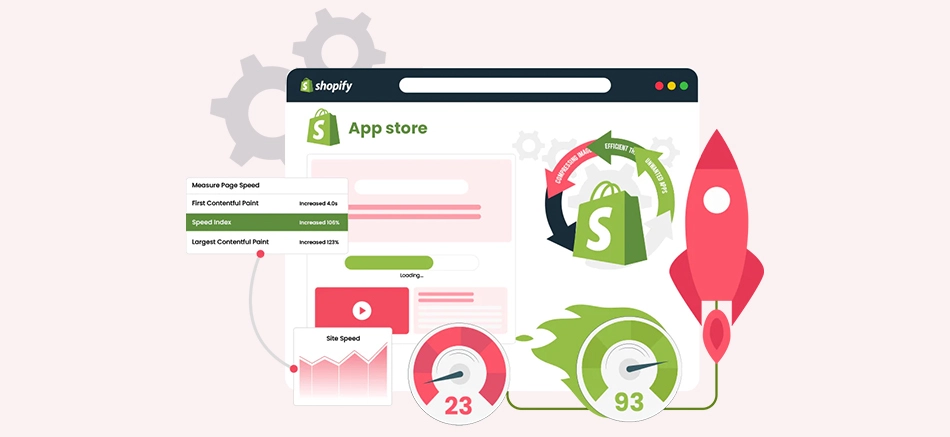
Before you start removing or changing anything, you need to know which apps are causing the most damage. Here are the best free tools to find out:
Tool 1: Google PageSpeed Insights
Go to pagespeed.web.dev and enter your store URL. Scroll down to the Third Party Summary section. This shows you every third party script loading on your page, how long each one takes to download, and how much it blocks your page from rendering. This is the clearest view of your app impact available.
Tool 2: GTmetrix
GTmetrix at gtmetrix.com gives you a full waterfall chart showing every file loaded on your page in the order it loads. You can clearly see which app scripts are loading, how large they are, and whether they are blocking other resources from loading. Look for any scripts from external domains that are not shopify.com or your theme developer.
Tool 3: Chrome DevTools Network Tab
Open your store in Google Chrome. Right click anywhere and select Inspect. Go to the Network tab and reload the page. Filter by JS to see all JavaScript files loading. Any file loading from an external domain like cdn.appname.com or widget.appname.io is a third party app script. Note the file size and load time for each one.
Tool 4: Shopify Speed Dashboard
In your Shopify Admin go to Online Store then Themes and look for the Speed section. This gives you an overall speed score and flags common issues. While it does not break down individual apps, it gives you a baseline score to measure improvement against after making changes.
What to Look for When Auditing App Scripts:
- Any script file larger than 50 KB that loads on every page
- Scripts that appear in the render blocking resources warning in PageSpeed Insights
- Multiple scripts from the same app domain suggesting an app is loading too many files
- Scripts from apps you no longer actively use or have stopped paying for
- Tracking pixels or analytics scripts that could be consolidated into Google Tag Manager
The App Impact Audit: Rate Every App You Have
Once you know which apps are loading scripts, do a full audit of every installed app using this simple framework. Open your Shopify Admin, go to Apps and go through each one:
| App Category | Speed Impact | What to Do |
| Reviews app (actively used) | Medium | Keep. Optimise by loading reviews asynchronously if possible |
| Email popup (used weekly) | Medium | Keep. Check if it can be set to load after page interactive |
| Upsell or cross sell (used daily) | Medium to High | Keep. Ensure it only loads on product and cart pages |
| Live chat widget (rarely used) | High | Remove or replace with a lighter alternative |
| Countdown timer (seasonal use) | Medium | Remove when not in active use. Reinstall for campaigns |
| Currency converter (all visitors) | Medium | Keep. Look for a theme with built in currency switching |
| Loyalty programme (low usage) | High | Evaluate ROI. Remove if it generates less value than its speed cost |
| Old deleted apps with leftover code | High | Immediately clean up the leftover scripts from your theme |
👉 Already deleted apps but still seeing their scripts in your speed test? They likely left code behind. Read our complete cleanup guide: How to Remove Unused Apps and Scripts from Your Shopify Store
How to Reduce Third Party App Impact Without Removing Them
Sometimes you need the app but want to reduce its speed impact. Here are the most effective strategies:
Strategy 1: Use Google Tag Manager for All Tracking Scripts
If you have multiple tracking and analytics scripts installed as individual Shopify apps or added directly to your theme, consolidate them all into Google Tag Manager (GTM). GTM loads a single script and manages all your tracking pixels, analytics tools, and marketing tags from one place.
Benefits of Google Tag Manager for Shopify:
- Loads all your tracking scripts asynchronously so they do not block page rendering
- You can add, remove and modify scripts without touching your theme code
- You can set scripts to fire only on specific pages or user actions
- Dramatically reduces the number of individual third party scripts on your store
Strategy 2: Load App Scripts Only on Relevant Pages
Most app scripts load on every single page of your store even when they are completely irrelevant. A cart upsell app does not need to load on your blog. A review widget does not need to load on your contact page. Talk to your app developer or check the app settings for options to restrict which pages the script loads on. Some advanced apps support page specific loading natively.
Strategy 3: Defer Non Critical App Scripts
Non critical app scripts like chat widgets, loyalty popups and social share buttons do not need to load the moment a visitor arrives. You can defer these scripts so they load only after your critical page content has fully loaded and the visitor can already interact with your store. Apps like Hyperspeed and Plug In Speed can automate this deferral for you.
👉 Deferring scripts works beautifully alongside minification. Learn how to minify your Shopify code too: How to Minify CSS JavaScript and HTML on Shopify
Strategy 4: Choose Lighter App Alternatives
Not all apps that do the same job are equal in terms of speed impact. If an app is causing serious speed problems but you need its functionality, research lighter alternatives. For example:
| Heavy App Type | Lighter Alternative to Consider |
| Full featured live chat platform | Simple async chat widget or offline contact form |
| Heavy loyalty programme app | Lightweight points app with smaller script footprint |
| Complex review app with media | Simple text review app or Shopify native reviews |
| Third party currency converter | Shopify Markets built in currency switching (no extra script) |
| Standalone email popup app | Use your email platform native popup instead (one less script) |
Strategy 5: Regularly Audit and Remove Apps You Do Not Use
This sounds obvious but it is the most impactful strategy of all. Set a reminder every three months to open your Shopify Admin Apps list and ask yourself one simple question for each app: did I use this in the last 30 days and is it generating measurable value? If the answer is no, delete it. Then clean up the leftover scripts it leaves behind.
Real World Speed Impact: Before and After App Cleanup
Here is what a typical mid size Shopify store looks like before and after a proper third party app audit and cleanup:
| Metric | Before App Cleanup After App Cleanup |
| Number of third party scripts | 22 scripts 8 scripts |
| Total third party script size | 1.4 MB 420 KB |
| Page load time | 5.8 seconds 2.9 seconds |
| Shopify speed score | 28 61 |
| Google PageSpeed mobile score | 34 68 |
| Monthly app subscription costs | £180 per month £95 per month |
Note: These are representative figures from a real mid size Shopify fashion store audit. Results vary based on your specific apps and theme.
Your Third Party App Speed Audit Checklist
Run through this checklist every three months to keep your store lean and fast:
- Open your Shopify Admin and list every installed app
- Run a PageSpeed Insights test and check the Third Party Summary section
- Use GTmetrix to identify the largest and slowest loading app scripts
- Rate each app by usage frequency and business value vs speed cost
- Delete any apps you have not actively used in the last 30 days
- Clean up leftover scripts from deleted apps in your theme code
- Move all tracking and analytics scripts into Google Tag Manager
- Check if any active apps support page specific script loading
- Use a speed app to defer non critical scripts from active apps
- Research lighter alternatives for any high impact apps you must keep
- Run a post cleanup PageSpeed test and compare your scores
Frequently Asked Questions (FAQ)
Final Thoughts
Third party apps are one of the greatest strengths of the Shopify ecosystem. They let you add powerful features without building anything from scratch. But they come with a hidden cost that too many store owners ignore until it is hurting their sales.
The good news is that this is entirely fixable. A focused app audit, combined with smart strategies like Google Tag Manager, script deferral and regular cleanup, can transform a bloated slow store into a lean fast one without sacrificing a single feature you actually need.
Start with a PageSpeed Insights test right now and check your Third Party Summary. You might be surprised by what you find. Then work through the checklist in this guide and start making changes one step at a time.
A faster store is a better store. And your customers and Google will both reward you for it.
