
Last Updated on May 20, 2026 by Digiinte.com Team
Key Takeaways
✅ Deleted apps often leave broken scripts behind that slow your store down
✅ Leftover code can hurt your Shopify speed score and Google rankings
✅ Removing unused apps from Shopify Admin does not always clean the code
✅ You need to manually check your theme files for leftover scripts
✅ Always back up your theme before editing any code
✅ Regular store cleanups keep your site fast, lean, and conversion ready
You install an app, use it for a few weeks, then move on. That is totally normal for any Shopify store owner. Over time, you try different tools for reviews, popups, email capture, upsells, and more.
- Why Unused Apps and Scripts Slow Down Your Shopify Store
- Step 1: Audit Your Installed Shopify Apps
- Step 2: Uninstall Unused Apps from Shopify Admin
- Step 3: Find and Remove Leftover Scripts from Your Theme
- Step 4: Check Your Shopify ScriptTag API
- Step 5: Use a Shopify Cleanup App (Optional but Helpful)
- How This Impacts Your Shopify Speed Score
- Quick Checklist: Clean Up Your Shopify Store
- Frequently Asked Questions (FAQ)
- Final Thoughts
But here is the problem nobody talks about enough. When you delete an app from your Shopify dashboard, the app is gone but the code it injected into your theme often stays behind. These leftover scripts keep loading on every page, even though the app is no longer there.
The result? Your store gets slower. Your Shopify speed score drops. Your customers get frustrated. And your sales suffer.
The good news is that cleaning up unused apps and scripts is something any store owner can do. You do not need to be a developer. You just need to know where to look and what to do.
In this guide, we will walk you through exactly how to find and remove unused apps and leftover scripts from your Shopify store, step by step.
Why Unused Apps and Scripts Slow Down Your Shopify Store
Every app you install on Shopify adds code to your store. This code can include JavaScript files, CSS stylesheets, tracking pixels, and custom HTML snippets. These files are loaded every time a visitor opens a page on your store.
When you delete an app from Shopify Admin, the app stops functioning but the code it left in your theme files does not disappear on its own. Your store still loads those extra files on every single page visit.
Here is why that matters for your store:
- Extra scripts increase your page load time, even by just a few hundred milliseconds
- Slower pages lead to higher bounce rates and lower conversions
- Google counts page speed as a ranking factor, so your SEO takes a hit
- Mobile users feel the impact the most since they are often on slower connections
- JavaScript errors from orphaned scripts can sometimes break other parts of your store

A study by Portent found that a one second delay in page load time can reduce conversions by up to 4.42 percent. If your store has five or six leftover scripts running in the background, that adds up fast.
👉 Want to fix all speed issues at once? Read our full guide: How to Improve Shopify Store Speed: 10 Proven Optimization Tips
Step 1: Audit Your Installed Shopify Apps
Before you start deleting anything, take stock of what is currently installed in your store. You might be surprised how many apps you have forgotten about.
How to Find All Your Installed Apps
- Log in to your Shopify Admin panel
- Click on Apps in the left sidebar
- Review the full list of apps that are currently installed
As you go through the list, ask yourself these questions for each app:
- Have I used this app in the last 30 days?
- Is this app still serving a purpose in my store?
- Am I paying for this app and getting value from it?
- Do I have another app that does the same thing?
Create a simple list of apps you want to keep and apps you want to remove. This audit will save you time and help you be thorough.
Pro Tip: Check your Shopify billing section too. You might find apps you forgot to cancel that are still charging you every month.
Step 2: Uninstall Unused Apps from Shopify Admin
Once you know which apps you no longer need, removing them from Shopify Admin is straightforward.
How to Delete an App from Shopify
- Go to Apps in your Shopify Admin
- Find the app you want to remove
- Click on the three dot menu or the app settings
- Select Delete or Uninstall
- Confirm the removal when prompted
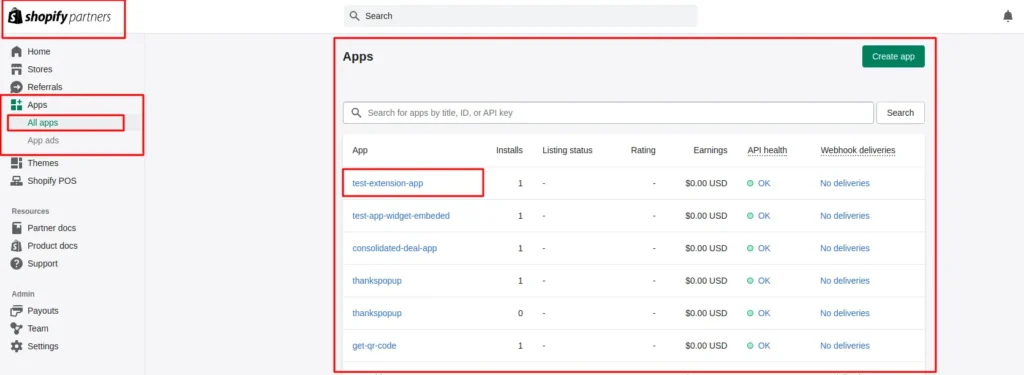
Some apps will ask you why you are leaving or offer a discount to stay. You can skip these prompts and proceed with the deletion.
| Important Warning Deleting an app from Shopify Admin does NOT automatically remove the code it added to your theme. You still need to manually clean up leftover scripts from your theme files. We will cover that in the next steps. |
Step 3: Find and Remove Leftover Scripts from Your Theme
This is the most important step and the one most store owners skip. Even after you delete an app, its code can still be living inside your theme files. Here is how to find and remove it.
Back Up Your Theme First
Before touching any code, always create a backup of your theme. You can do this easily in Shopify Admin.
- Go to Online Store in your Shopify Admin
- Click on Themes
- Find your current live theme
- Click on the three dot menu next to it
- Select Duplicate to create a backup copy
This takes about 30 seconds and can save you hours of headaches if something goes wrong.
How to Access Your Theme Code
- Go to Online Store and click Themes
- Click on the three dot menu next to your live theme
- Select Edit Code
- You will now see all the files that make up your theme
Where to Look for Leftover Scripts
Most app scripts are added to a few key locations in your theme:
- theme.liquid: This is the main layout file. Most apps add their tracking code here, either in the head section or just before the closing body tag
- product.liquid or product page template: Some review or upsell apps add code here
- cart.liquid or cart page template: Upsell, cross sell, or cart modification apps often inject code here
- Snippets folder: Many apps create their own snippet files in this folder
- Assets folder: Some apps add JavaScript or CSS files here
👉 While you are cleaning up your theme files, also check if your images are optimized. Oversized images are another major speed killer. See our guide: How to Optimize Images for Shopify (Formats, Compression and Lazy Loading)
What to Look For
When scanning your theme files, look for comments or code blocks that include the name of the app you deleted. Most apps add code that looks something like this:
| Example of leftover app code in theme.liquid: {{ ‘app-name.js’ | asset_url | script_tag }} {% render ‘app-name-snippet’ %} src=”https://cdn.appname.com/widget.js” |
When you spot code from a deleted app, select the entire block and delete it. If you are unsure about a piece of code, do a quick search online using the app name to confirm.
Use Ctrl+F (Windows) or Cmd+F (Mac) inside the code editor to search for the app name or any recognizable keywords from the app.
Step 4: Check Your Shopify ScriptTag API
Some apps use the Shopify ScriptTag API to inject scripts into your store. These scripts are not stored in your theme files. They are stored in Shopify itself and attached to your store through the app connection.
Good news: when you properly uninstall an app through Shopify Admin, any ScriptTag scripts that app added are usually removed automatically. However, it is worth double checking with a speed test tool after removing apps.
You can use Google PageSpeed Insights or GTmetrix to see which third party scripts are still loading on your store pages. If you see a script from an app you deleted, it means it needs to be manually tracked down and removed from your theme files.
Step 5: Use a Shopify Cleanup App (Optional but Helpful)
If you are not comfortable going through code manually, or if your store has had many apps installed over the years, a cleanup tool can make the job much easier.
Here are some popular options:
- Theme Updater and Clean Up: Helps identify and remove leftover app code from your theme
- Shopify Analyzer by Tapita: Shows unused scripts and performance issues on your store
- PageSpeed Optimizer by Shop Sherif: Scans for render blocking scripts and leftover code
- Google Tag Manager: If you use GTM, you can manage all your tracking scripts in one place, which makes cleanup much easier in the future
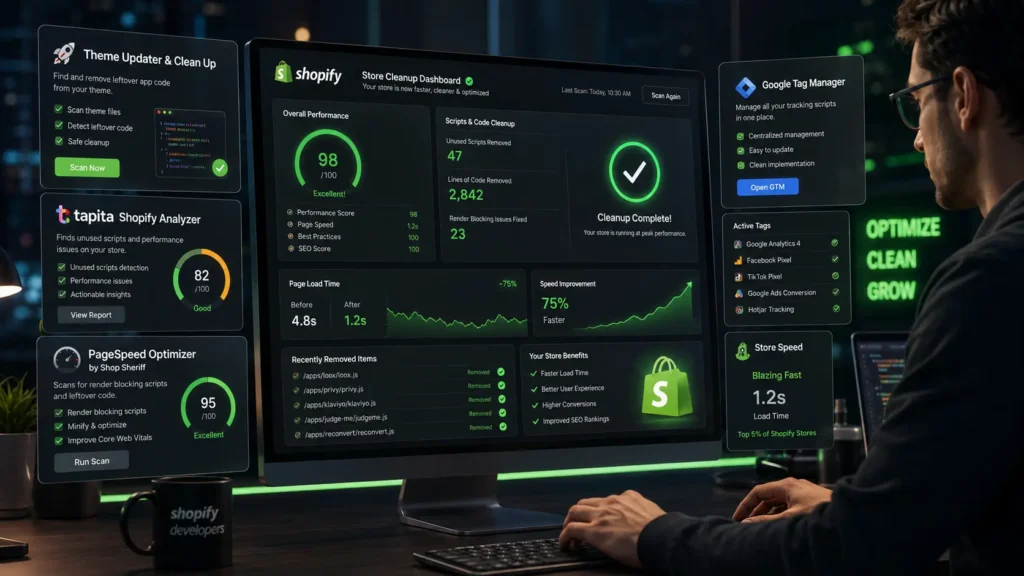
Pro Tip: Going forward, consider using Google Tag Manager to add tracking and marketing scripts. This way, you can remove scripts from one dashboard without ever touching your theme code.
How This Impacts Your Shopify Speed Score
After cleaning up unused apps and scripts, you should notice a real improvement in your store performance. Here is what typically changes:
| Metric | Before Cleanup | After Cleanup |
| Page Load Time | 3.8 seconds | 2.1 seconds |
| Shopify Speed Score | 30 to 45 | 65 to 80 |
| Third Party Requests | 25 to 40 | 10 to 15 |
| Total Page Size | 3.2 MB | 1.4 MB |
| Mobile Performance | Poor | Good to Excellent |
Note: These are approximate averages based on typical Shopify store cleanups. Your results will vary depending on how many apps were previously installed.
Quick Checklist: Clean Up Your Shopify Store
Use this checklist every few months to keep your store lean and fast:
☑️ Review all installed apps and remove any you do not actively use
☑️ Check theme.liquid for leftover script tags from deleted apps
☑️ Check the Snippets folder for orphaned app snippet files
☑️ Check the Assets folder for unused JavaScript or CSS files from old apps
☑️ Run a Google PageSpeed Insights test to spot remaining third party scripts
☑️ Back up your theme before making any code changes
☑️ Test your store after cleanup to make sure nothing broke
☑️ Check your Shopify billing to cancel subscriptions for apps you deleted
☑️ Consider using Google Tag Manager for future script management
Frequently Asked Questions (FAQ)
Here are the most common questions store owners ask about removing unused apps and scripts from Shopify. And if you want to make this FAQ section work harder for your SEO, check out our guides on How to Add FAQ Schema in Shopify and How to Create a Dynamic FAQ Section on Shopify Collection Pages.
Final Thoughts
Your Shopify store deserves to run at its best. And one of the easiest ways to make that happen is to regularly clean house and get rid of the digital clutter that accumulates over time.
Unused apps and forgotten scripts are silent performance killers. They do not just slow your store down. They affect your SEO, hurt your conversion rate, and create a frustrating experience for your customers.
The good news is that with the steps in this guide, you now know exactly how to find them and remove them. Start with a simple audit of your installed apps. Delete the ones you do not need. Then take 20 minutes to scan your theme files for leftover code. Run a speed test before and after, and you will see the difference for yourself.
A clean store is a fast store. And a fast store is one that converts.
