
Key Takeaways
- If your WordPress form is not working, the most common causes are email delivery issues, plugin conflicts, or incorrect form configuration.
- SMTP configuration fixes nearly 70–80% of WordPress form email problems, according to WordPress troubleshooting documentation and plugin developer reports.
- Always check spam folders, plugin conflicts, caching issues, and server email settings when troubleshooting.
- Switching from default PHP mail to SMTP email authentication dramatically improves reliability.
- Testing forms after each fix helps isolate the exact problem quickly.
- Key Takeaways
- Why WordPress Forms Stop Working
- 1. Verify Your Form Plugin Configuration
- 2. Switch from PHP Mail to SMTP
- 3. Check Your Spam Folder and Email Filters
- 4. Disable Caching Plugins Temporarily
- 5. Identify Plugin Conflicts
- 6. Review Hosting Email Restrictions
- 7. Update WordPress, Plugins, and Themes
- Conclusion
- FAQs
Why WordPress Forms Stop Working
Few things are more frustrating than discovering your WordPress form not working after potential customers try to contact you. The form looks fine on the page, visitors click submit, and everything appears successful—but no email arrives. For businesses relying on contact forms for leads, this silent failure can mean lost opportunities and missed inquiries.
Most WordPress websites depend on form plugins like WPForms, Contact Form 7, Gravity Forms, or Ninja Forms. These tools simplify form creation, but they also introduce dependencies on email servers, plugin compatibility, caching systems, and hosting configurations. When any of these pieces break, the result is a WordPress form submission error or a form that simply doesn’t send messages.
Email delivery issues are the most frequent culprit. WordPress sends emails using PHP mail by default, which many hosting providers restrict or flag as suspicious. Without authentication, your WordPress form not sending email becomes a common outcome.
The good news? In most cases, the problem is easy to fix. Instead of digging through server logs or contacting developers immediately, you can resolve the majority of issues with a few targeted troubleshooting steps.
This guide breaks down 7 proven fixes that solve the most common reasons a contact form not working in WordPress fails to submit or deliver emails.
1. Verify Your Form Plugin Configuration
The first step when dealing with a WordPress contact form not submitting is checking the form plugin settings. Even a small misconfiguration can prevent the form from functioning correctly.
Most WordPress form plugins require specific settings to process submissions properly. These settings include the recipient email address, confirmation messages, and submission actions. If any of these are incomplete or incorrect, the form may appear to submit but silently fail behind the scenes.
One common mistake occurs when the recipient email address is different from the website’s domain. For example, if your website domain is example.com but the form sends emails to gmail.com, some servers block the message to prevent spoofing. This leads to a WordPress form not sending email scenario even though the form itself works.
Another configuration issue appears when required fields or validation rules are misconfigured. A form may fail to submit due to hidden validation errors that users cannot see. Reviewing field settings inside the form builder usually reveals the problem.
To troubleshoot plugin configuration:
- Open your form plugin settings.
- Verify the recipient email address.
- Confirm that form notifications are enabled.
- Check confirmation messages or redirect settings.
- Ensure all required fields are correctly configured.
Fixing these basic settings resolves a surprising number of cases where a WordPress form submission error occurs.
2. Switch from PHP Mail to SMTP
One of the most effective fixes when a WordPress form not working occurs involves changing how WordPress sends emails.
By default, WordPress uses PHP mail, which lacks authentication and often triggers spam filters. Many hosting providers either restrict or throttle PHP mail usage to prevent abuse. As a result, form submissions may never reach the intended inbox.
SMTP (Simple Mail Transfer Protocol) solves this issue by authenticating emails through trusted email services like Gmail, Outlook, or professional mail providers. This verification dramatically improves email delivery.
According to WordPress plugin developers, configuring SMTP resolves the majority of WordPress form email failures.
Popular SMTP plugins include:
| Plugin | Key Feature | Best For |
| WP Mail SMTP | Easy configuration wizard | Beginners |
| FluentSMTP | Multiple SMTP connections | Advanced users |
| Post SMTP | Detailed email logs | Troubleshooting |
Once installed, the SMTP plugin connects your WordPress site to an authenticated mail server. This ensures your WordPress form not sending email problem disappears because the emails are properly verified.
SMTP also provides additional benefits:
- Higher email delivery rates
- Reduced spam filtering
- Detailed email logs for debugging
If your contact form stopped working recently, switching to SMTP should be the first technical fix you try.
3. Check Your Spam Folder and Email Filters
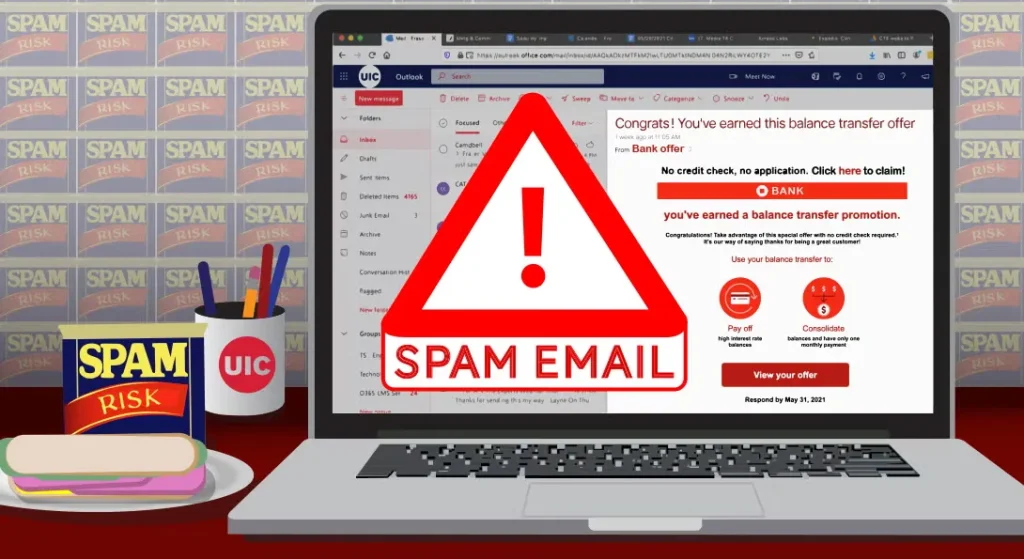
Sometimes the form works perfectly, but the email never appears in the inbox. Instead, it lands quietly in the spam folder.
Spam filters have become increasingly strict in recent years. Email providers analyze sender reputation, authentication records, and message content before allowing delivery. Without proper verification, automated messages from WordPress forms are often flagged as suspicious.
When a contact form not working WordPress issue appears, checking the spam folder should always be part of the troubleshooting process. Many website owners assume the form failed when in reality the email was simply filtered.
Common reasons form emails go to spam include:
- Missing SPF or DKIM authentication records
- Using generic sender addresses like [email protected]
- Emails sent through PHP mail instead of SMTP
- Suspicious message formatting
A quick test submission can reveal whether spam filtering is the problem. If the email appears in spam, the form itself works and the focus should shift toward improving email authentication.
Setting up SPF and DKIM records in your domain DNS significantly improves deliverability and reduces WordPress form submission errors related to email filtering.
4. Disable Caching Plugins Temporarily
Caching plugins dramatically improve WordPress performance, but they can also interfere with form submissions.
When caching systems store static versions of pages, forms may fail to process dynamic data. Instead of sending submissions to the server, cached pages sometimes ignore form requests entirely. This can result in a WordPress contact form not submitting issue even though everything appears functional.
Popular caching tools like WP Rocket, LiteSpeed Cache, and W3 Total Cache sometimes block AJAX form requests. Since many form plugins rely on AJAX for submissions, caching conflicts can break the form functionality.
Testing this possibility is simple:
- Temporarily disable your caching plugin.
- Clear the website cache.
- Submit the form again.
If the form suddenly works, the caching system is interfering with submission processing.
Most caching plugins allow you to exclude specific pages from caching. Adding the contact page or form endpoints to the exclusion list prevents future conflicts.
This step alone often fixes cases where a WordPress form not working despite correct plugin settings.
5. Identify Plugin Conflicts
WordPress websites often run dozens of plugins simultaneously. While each plugin may function correctly on its own, conflicts between them can cause unexpected problems—including broken forms.
A plugin conflict can interrupt scripts required for form submission, validation, or email delivery. In many cases, the conflict appears after installing a new plugin or updating an existing one.
When diagnosing a WordPress form submission error, the safest approach is systematic testing.
The process works like this:
- Disable all plugins except the form plugin.
- Test the form submission.
- Re-enable plugins one at a time.
If the form stops working after activating a specific plugin, the conflict becomes obvious.
Common sources of conflicts include:
- Security plugins blocking form submissions
- Spam protection tools misidentifying legitimate submissions
- JavaScript optimization plugins altering scripts
Once the problematic plugin is identified, you can either adjust its settings or replace it with a compatible alternative.
Plugin conflicts remain one of the most overlooked causes of WordPress contact form not submitting errors, especially on sites with heavy plugin usage.
6. Review Hosting Email Restrictions
Not all hosting providers allow unrestricted email sending from WordPress. Many shared hosting environments limit outgoing emails to prevent spam abuse.
If your WordPress form not sending email, your hosting provider may be blocking the request entirely.
Hosting restrictions can include:
- Daily email limits
- Disabled PHP mail functionality
- Domain authentication requirements
- Blocked SMTP ports
Checking your hosting documentation or contacting support often reveals whether these restrictions exist.
Managed WordPress hosts sometimes disable PHP mail entirely and require SMTP configuration instead. In those cases, forms appear to submit successfully but the email never sends.
If hosting limitations are the issue, the solution typically involves one of the following:
- Configuring SMTP email authentication
- Using a transactional email service
- Upgrading hosting plans
Services like SendGrid, Mailgun, and Amazon SES provide reliable email delivery specifically designed for automated messages like contact forms.
7. Update WordPress, Plugins, and Themes
Outdated software can break form functionality in subtle ways. WordPress core updates frequently include security fixes and compatibility improvements. When plugins or themes remain outdated, they may stop working properly with newer WordPress versions.
A WordPress form not working issue often appears immediately after a core update if the form plugin hasn’t been updated accordingly.
Theme updates also matter because many forms rely on theme scripts and styling. If the theme contains outdated JavaScript libraries, form submissions may fail silently.
Regular updates ensure compatibility between:
- WordPress core
- Form plugins
- Themes
- Supporting plugins
Before updating, always create a website backup. This allows you to restore the previous version if an update introduces unexpected issues.
Maintaining updated software significantly reduces the chances of experiencing WordPress form submission errors in the future.
Conclusion
A WordPress form not working problem can feel alarming, especially when contact forms drive leads or customer communication. Fortunately, most issues stem from a small number of predictable causes—misconfigured form settings, email delivery problems, plugin conflicts, caching interference, or hosting restrictions.
The fastest path to resolution involves checking the simplest possibilities first. Verify form settings, test email delivery, and confirm whether messages land in spam folders. From there, move toward more technical fixes such as SMTP configuration, caching exclusions, and plugin conflict testing.
Switching to SMTP authentication remains the most reliable long-term solution for cases where WordPress form not sending email becomes a recurring problem. Combined with proper DNS email authentication, this approach ensures consistent delivery and improves overall reliability.
Once your forms function correctly again, it’s worth implementing monitoring tools or email logs so that future issues are detected immediately. Preventing silent failures protects both user experience and potential business opportunities.