

Checking your anchor text takes less than 5 minutes and most SEOs never do it.
That gap is where penalties hide. The backlink profile that looks clean on the surface can have a concentration of exact-match anchor text quietly undermining your rankings from underneath. This guide shows you exactly how to check it – using free tools, paid tools, and a repeatable audit process you can run every month.
Key Fact : What You Are Actually Looking For
Google’s Search Central documentation confirms that anchor text is one of the primary signals used to determine what a linked page is about and how much relevance to assign to it. This means every external link pointing to your site carries an anchor text signal and that signal is either helping you rank or creating a pattern Google flags as manipulation. Checking it is not optional. It is baseline SEO maintenance.
Summary
This guide gives you three complete step-by-step methods for checking anchor text of backlinks: using Google Search Console (free), using Ahrefs (most comprehensive), and using SEMrush (best for reporting). Each method is broken into numbered steps with clear instructions and what to look for at each stage. By the end, you will have a complete anchor text audit process you can repeat monthly and you will know exactly what a healthy anchor text distribution looks like versus a profile that needs fixing.
- What You Are Looking For Before You Start
- Method 1: Check Anchor Text Free Using Google Search Console
- Method 2: Check Anchor Text Using Ahrefs (Most Complete Data)
- Method 3: Check Anchor Text Using SEMrush (Best for Reports)
- How to Analyse What You Find — The 5-Point Audit Framework
- What a Healthy vs Unhealthy Anchor Text Profile Looks Like
- What to Do After Your Anchor Text Check — Next Actions
- Anchor Text Check Frequency: How Often Should You Do This?
- Anchor Text Learning — Related Guides
- FAQ: Anchor Text Check Questions Answered
What You Are Looking For Before You Start
When you check the anchor text of your backlinks, you are looking for the distribution of anchor types across your referring domain profile. The key question is not what individual anchors say . it is what percentage of your total backlinks use branded anchors versus keyword-rich anchors versus generic phrases. A healthy profile is dominated by branded and natural anchors. A risky profile is dominated by exact-match keyword anchors.
Before you open any tool, understand these three things:
3 Things to Know Before You Check
1. Measure by referring domains, not raw links: One spammy website can send 500 links with the same anchor text. Counting each link individually gives a distorted picture. Always use referring domain counts that is the number of unique websites using each anchor.
2. Dofollow links carry the anchor text signal: Nofollow links pass reduced or no link equity depending on context. For anchor text ratio analysis, focus on dofollow backlinks first. these are the ones Google weights most heavily as ranking signals.
3. You are comparing against a benchmark, not a fixed rule: The safe anchor text ratio (40–50% branded, under 10–15% exact match) is a guideline based on industry research and Google’s documentation on unnatural links not a hard technical limit. What matters is whether your profile looks natural compared to editorially earned links.
Method 1: Check Anchor Text Free Using Google Search Console
To check anchor text of backlinks using Google Search Console: log in, go to Links in the left navigation, scroll to ‘Top anchor texts’ under External links, and click ‘More’ to expand the full list. This shows the anchor texts Google has indexed from your backlink profile directly from Google’s own data. Export the list to a spreadsheet to begin your analysis.
Google Search Console is the only anchor text source that reflects exactly what Google has indexed. It is not as detailed as paid tools, but for a first anchor text check it is the most authoritative starting point available and it is completely free.
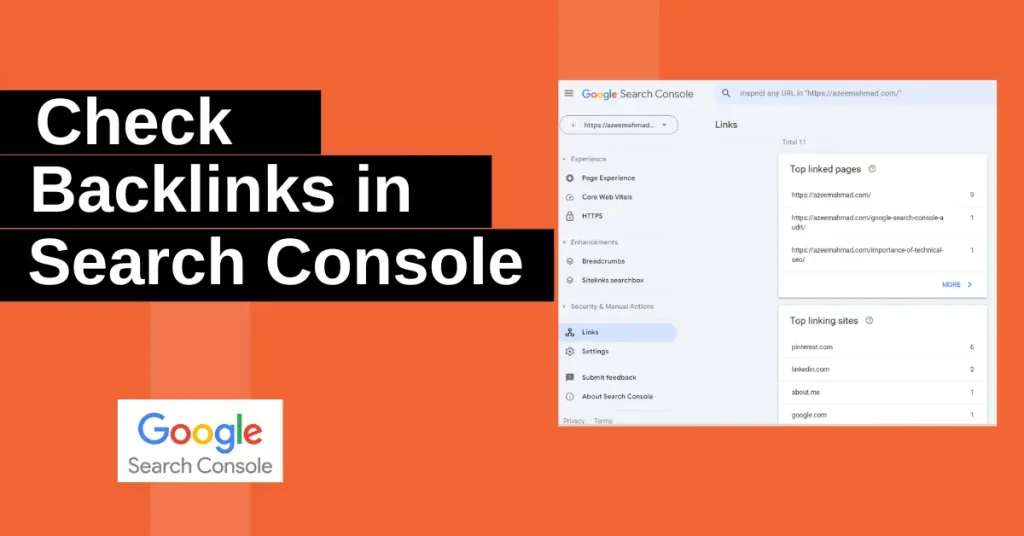
Step-by-Step: Anchor Text Check in Google Search Console
- Log in to Google Search Console: Go to search.google.com/search-console and select the property (website) you want to audit. If you manage multiple sites, make sure you have selected the correct one from the property selector at the top.
- Click ‘Links’ in the left sidebar Scroll down the left navigation panel to find ‘Links’. It sits near the bottom of the menu, below Index and Experience sections. Click it to open the Links overview page.
- Find ‘Top anchor texts’ under External links On the Links overview page you will see two columns: External links and Internal links. Under External links, look for the ‘Top anchor texts’ section. It shows only the top anchors by default and click ‘More’ to expand to the full list.
- Export the anchor text list In the top-right corner of the expanded anchor text table, click the export button (download icon). Choose CSV or Google Sheets. This gives you a raw list of anchor texts with their total link counts. Save this file and you will use it in your analysis.
- Classify each anchor text by type Open your exported file in a spreadsheet. Add a column called ‘Type’. For each anchor text, manually assign one of: Branded, Exact Match, Partial Match, Generic, Naked URL, or LSI/Semantic. This classification is the foundation of your audit.
- Calculate the percentage breakdown In a new column, calculate what percentage of your total anchor text count each type represents. Compare against the benchmarks: branded should be 40–50%, exact match should be under 10–15%. Flag any anchor type in the danger zone.
GSC Limitation: What Google Search Console Does Not Show You– Google Search Console shows your top anchor texts — not your complete anchor text distribution. It also does not allow you to filter by dofollow vs nofollow, by domain authority, or by link type. For a full audit, you need to complement GSC data with a tool like Ahrefs or Moz. Use GSC as your first check, then go deeper with a paid tool if you spot warning signs.
Method 2: Check Anchor Text Using Ahrefs (Most Complete Data)
To check anchor text of backlinks using Ahrefs: open Site Explorer, enter your domain, go to the Backlinks section, click the Anchors tab, change the filter from backlinks to referring domains, sort by referring domains descending, and export the results as CSV. This gives you the most accurate anchor text distribution available filtered by unique linking domains rather than inflated raw link counts.
Ahrefs is the tool most professional SEOs use for anchor text analysis because its index is the most comprehensive available and its Anchors tab is purpose-built for exactly this type of audit. The referring domain filter is the single most important setting without it, one high-volume spam site can make a minor anchor phrase look dominant.
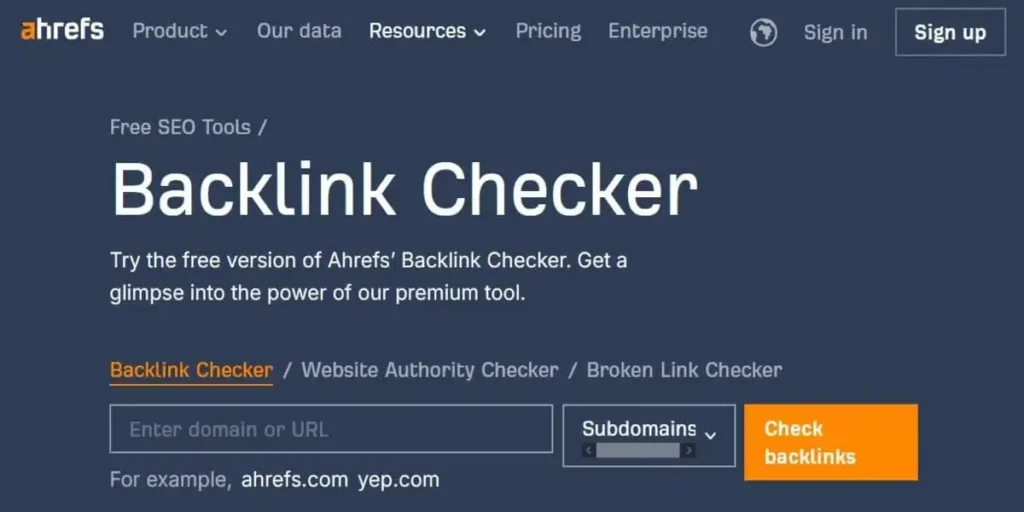
Step-by-Step: Anchor Text Check in Ahrefs
1. Open Ahrefs Site Explorer Log in to Ahrefs and go to Site Explorer. Enter your domain in the search bar. use the root domain format (e.g. digiinte.com) to capture all backlinks across your entire site, not just one page.
2. Navigate to Backlinks > Anchors tab In the left sidebar, click ‘Backlinks’. At the top of the Backlinks section, you will see several tabs: Backlinks, Broken, New, Lost, and Anchors. Click ‘Anchors’. This is your anchor text distribution view.
3. Switch from Backlinks count to Referring Domains This is the critical step most users miss. By default, Ahrefs shows anchor text sorted by raw backlink count. Change the primary sort metric to ‘Referring Domains’. This filters out link volume inflation and shows how many unique websites use each anchor — which is how Google assesses your profile.
4. Apply dofollow filter Click the ‘Link type’ filter and select ‘Dofollow’. This focuses your analysis on the links that actively pass anchor text signals to Google. Nofollow links carry significantly reduced weight and should be analysed separately if needed.
5. Review the top anchors With referring domain counts showing dofollow links, look at your top 20 anchor texts. Ask: Is your brand name the dominant anchor? Are exact-match keywords appearing in the top 5? Is there variety across anchor types? Red flags are easy to spot once you see the real distribution.
6. Export to CSV for full analysis Click the Export button at the top of the Anchors table. Choose CSV. Export all rows — not just the visible page. Open in a spreadsheet, add a Type column, classify each anchor, and calculate percentages across your full referring domain count.
7. Check per-page anchor breakdown (optional) If you want to audit a specific page rather than your whole domain, enter the exact page URL in Site Explorer instead of the root domain. The Anchors tab then shows only the anchor text distribution for that specific page’s backlinks — useful for money pages you are actively building links to.
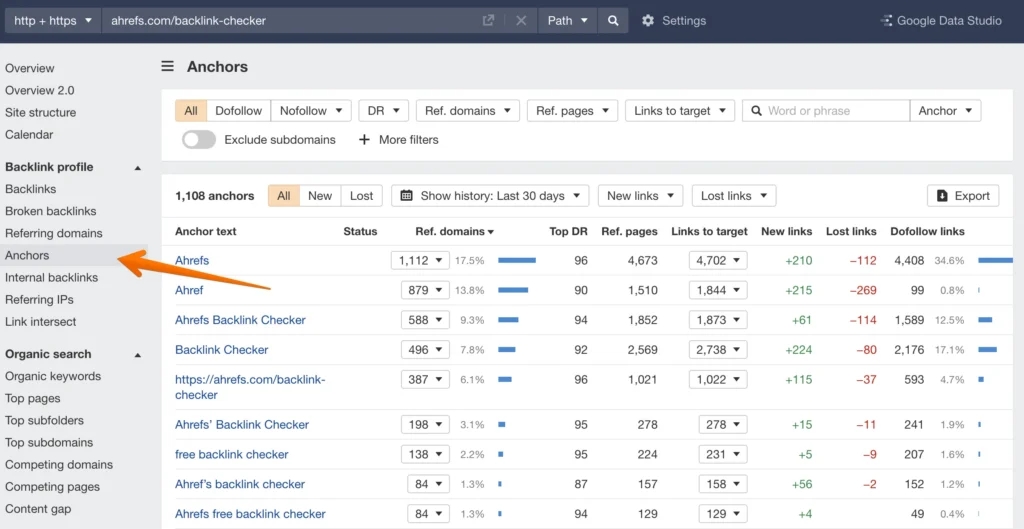
Pro Tip — Ahrefs New vs Lost Anchor Tracking After your baseline check, set a monthly reminder to review the ‘New’ and ‘Lost’ filter in the Anchors tab. This shows you which anchor texts appeared or disappeared from your profile in the last 30 days. A sudden spike of 20+ new exact-match anchors in a single month is the clearest early warning sign of an anchor text problem before it affects your rankings.
Method 3: Check Anchor Text Using SEMrush (Best for Reports)
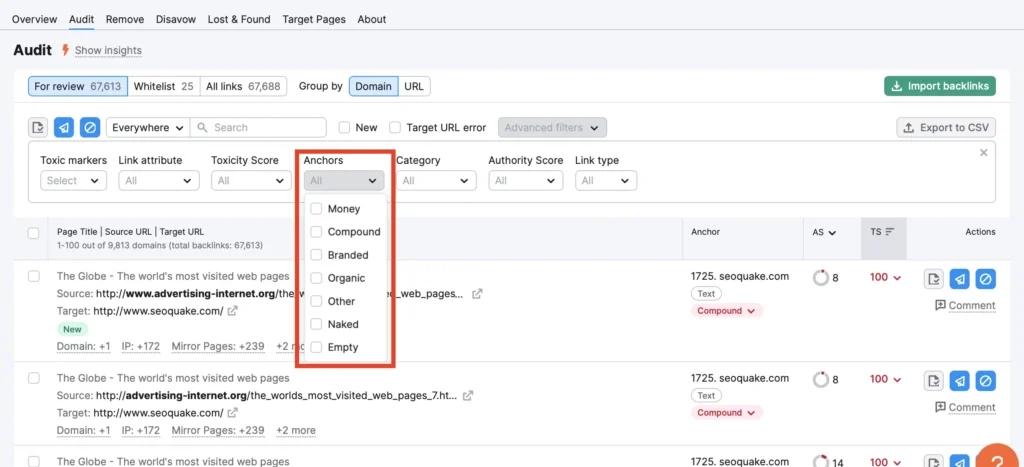
To check anchor text of backlinks using SEMrush: open Backlink Analytics, enter your domain, go to the Anchors tab, switch to Referring Domains view, apply the Active and Dofollow filters, and export. SEMrush also offers an automated Backlink Audit tool that classifies toxic anchor texts automatically — which saves significant manual classification time compared to doing it by hand in a spreadsheet.
SEMrush’s biggest advantage for anchor text analysis is its Backlink Audit tool — a dedicated module that automatically flags anchor texts matching known spam patterns and assigns a toxicity score to each backlink. For agencies or SEOs doing penalty recovery work, this automation is worth the cost of the platform on its own.
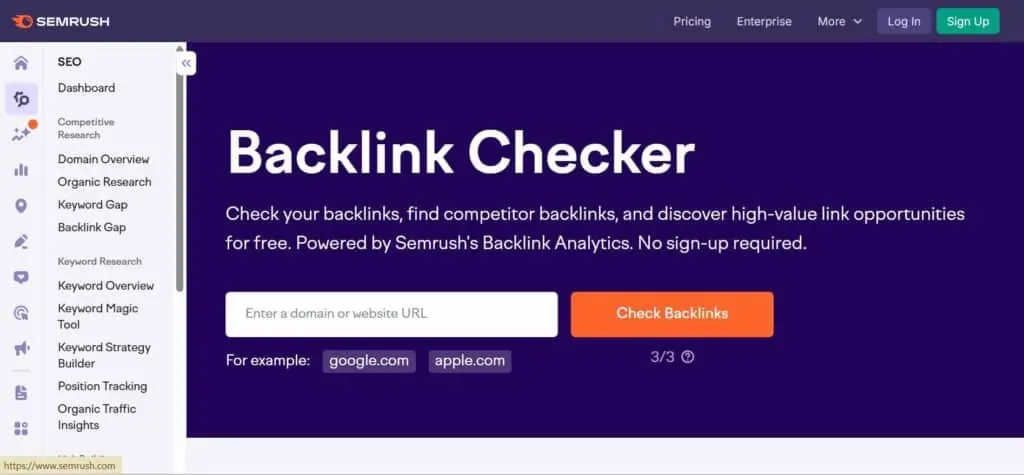
Step-by-Step: Anchor Text Check in SEMrush
1. Open Backlink Analytics Log in to SEMrush and go to Link Building > Backlink Analytics in the left menu. Enter your root domain in the search field and press Enter.
2. Go to the Anchors tab In the Backlink Analytics results, click the ‘Anchors’ tab near the top of the page. This shows your anchor text list sorted by backlink count by default.
3. Switch to Referring Domains view Like Ahrefs, SEMrush defaults to showing raw backlink counts. Click on the column header toggle to sort by ‘Referring Domains’. This gives you an accurate picture of how many unique sites use each anchor text.
4. Filter by Active and Dofollow Use the filter dropdowns to select Active links only (removes removed or broken backlinks) and Dofollow only (focuses on links that pass anchor text signals). These two filters together give you the cleanest view of your live anchor text profile.
5.Use Backlink Audit for automated toxic anchor detection For a deeper check, go to Link Building > Backlink Audit. Run a full audit. SEMrush automatically assigns a toxicity score to each backlink and flags high-risk anchor texts. This is especially valuable if you are recovering from a ranking drop and suspect anchor text manipulation is involved.
6. Export and review the anchor distribution chart Before exporting, review the anchor text distribution chart that SEMrush displays above the table. This visual breakdown shows the proportion of branded vs keyword vs generic anchors as a pie chart — useful for a quick health check before diving into the raw data.
How to Analyse What You Find — The 5-Point Audit Framework
After checking your anchor text data, analyse it using five criteria: (1) What is your branded anchor percentage? (2) What is your exact-match anchor percentage? (3) Is there a single anchor text dominating more than 15% of your referring domains? (4) Are there obviously toxic or spammy anchor texts in the list? (5) How does your distribution compare to the safe benchmark ratios? Each of these five questions has a clear pass or fail answer.
| Audit Point | What to Check | Safe Zone | Warning Sign | Action Required |
| 1. Branded Anchor % | % of referring domains using brand name or URL as anchor | 40–50% | Under 30% | Build more branded links via PR, citations, brand mentions |
| 2. Exact Match Anchor % | % using your target keyword verbatim as anchor text | 5–10% | Over 15% | Stop exact-match outreach. Dilute with branded and generic anchors |
| 3. Single Anchor Dominance | Any single anchor phrase > 15% of total referring domains | Under 15% | 15–25% | Diversify immediately — vary anchor text in all new link acquisition |
| 4. Toxic/Spam Anchors | Anchors from irrelevant, foreign, adult, or link farm sites | None | Any present | Disavow the referring domains — do not attempt to change the anchor |
| 5. Generic Anchor % | % using ‘click here’, ‘read more’, ‘this article’, ‘here’, URLs | 10–20% | Under 5% | Natural links almost always include some generic anchors — their absence looks suspicious |
What a Healthy vs Unhealthy Anchor Text Profile Looks Like
A healthy anchor text profile is dominated by branded anchors (40–50%), has a varied mix of naked URL, generic, and LSI anchors, and keeps exact-match keyword anchors well below 15%. An unhealthy profile has one or more keyword-rich anchors making up a disproportionately large share of referring domains, few or no branded anchors, and often a cluster of low-quality sites using identical anchor text — a clear footprint of manipulative link building.
| Anchor Type | Healthy Profile Example | Unhealthy Profile Example |
| Branded | 45% — ‘Digiinte’, ‘Digiinte.com’, ‘Digiinte blog’ | 8% — brand barely appears |
| Exact Match | 7% — ‘anchor text checker’ appears naturally from reviews & citations | 38% — ‘anchor text checker’ in most guest posts |
| Partial Match | 12% — ‘how to check anchor text’, ‘free anchor text tool’ | 22% — all partial matches are keyword-heavy |
| Naked URL | 14% — ‘https://digiinte.com’, ‘digiinte.com/blog’ | 4% — almost no raw URL links |
| Generic | 12% — ‘click here’, ‘read more’, ‘this guide’, ‘here’ | 3% — no generic anchors at all |
| LSI/Semantic | 10% — ‘backlink profile tool’, ‘link analysis checker’ | 25% — many keyword variations, all keyword-rich |
The Pattern Most SEOs Miss :The most common anchor text problem is not a single obvious exact-match keyword. It is a cluster of partial-match and LSI anchors that are ALL keyword-rich — meaning there is almost no branded, generic, or naked URL anchor text in the profile. This pattern emerges from guest posting campaigns where every post links with a keyword phrase, even if varied. Google’s SpamBrain detects the keyword-density pattern across the cluster as a whole, not just per individual anchor. If your branded anchor percentage is under 25%, that is the problem to fix first.
What to Do After Your Anchor Text Check — Next Actions
After checking your anchor text profile, take one of three actions based on what you find: if your profile is in the safe zone, set a monitoring schedule and continue your current link strategy. If you see warning signs, immediately adjust your outreach strategy to acquire branded and generic anchor links. If you find toxic anchors or severe over-optimisation, begin the disavow process and actively build diversity into your profile.
If Your Profile Is Healthy (Safe Zone)
- Set a quarterly anchor text check reminder in your calendar
- Do not become complacent: even a healthy profile can shift if you run a concentrated link building campaign
- Continue your current strategy — it is working
- Document your baseline: save your current distribution percentages so you have a reference point for future audits
If You See Warning Signs (Elevated Exact Match or Low Branded)
- Pause all exact-match anchor outreach immediately. Every new link you build with a keyword anchor makes the ratio worse.
- Create a list of websites you have relationships with and request anchor text changes on your highest-traffic referring pages.
- Launch a branded link acquisition campaign: digital PR, podcast appearances, business citations, brand mention monitoring using tools like Mention or Google Alerts.
- For your next 10 guest posts or link placements, use only branded, naked URL, or generic anchors. No exceptions.
- Re-check your distribution in 60 days to measure progress.
If You Find Toxic Anchors or Severe Over-Optimisation
- Export your full backlink list from Ahrefs or SEMrush to a spreadsheet.
- Identify all backlinks that are: from link farms, adult/gambling sites, irrelevant foreign directories, or sites with zero organic traffic and DR under 5.
- Create a Google Disavow file — a plain text file listing each domain to disavow: domain:example.com
- Submit the disavow file via Google Search Console > Links > Disavow links (use with caution — this is a permanent action).
Anchor Text Check Frequency: How Often Should You Do This?
Most websites should check their anchor text profile quarterly. If you are actively running a link building campaign — guest posting, digital PR, link outreach — check monthly. If you have previously received a Google manual action related to unnatural links, or if your rankings dropped significantly after a core update, check weekly during the recovery period until your profile stabilises in the safe zone.
| Your Situation | Recommended Frequency | What to Watch For |
| Static site, no active link building | Quarterly | Any new toxic anchors from unsolicited links |
| Active blogging, occasional link outreach | Monthly | Exact-match % creeping above 10% |
| Running guest posting campaign | Monthly | Branded % dropping below 35% |
| Agency managing multiple client sites | Monthly per site | Any single anchor dominating above 15% |
| Recovering from a manual action or penalty | Weekly | Disavowed domains re-appearing, ratio improvement |
| E-commerce site with product pages | Quarterly | Product keyword anchors accumulating on main domain |
Anchor Text Learning — Related Guides
1. The Complete Guide to Backlink Anchor Text Analysis : the complete overview with all benchmarks, type definitions, and the full 15-post cluster map.
2. Best Free Backlink Anchor Text Checker Tools in 2026 : detailed breakdown of every tool you can use to run this check, with ratings, pros, cons, and free tier comparison.