
Last Updated on October 28, 2026 by Digiinte.com Team
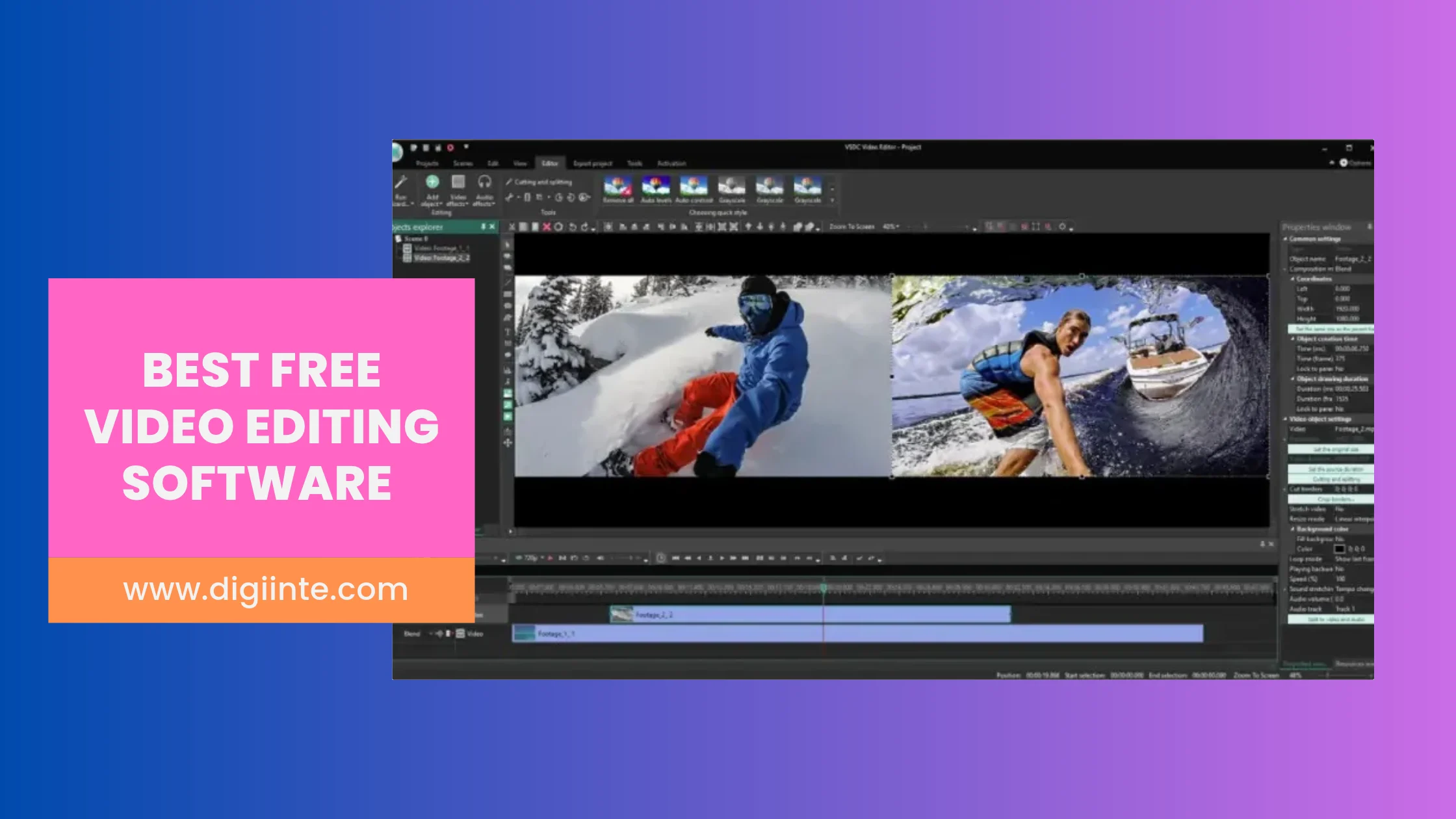
The best free video editing software for most people is DaVinci Resolve if you want professional tools and have a capable computer, CapCut or Clipchamp if you want quick, template-driven edits, iMovie if you own a Mac, and Kdenlive or Shotcut if you prefer open-source software with no company behind your footage. OpenShot is the gentlest option for an older machine.
That is the short answer. The longer one matters, because “free” means very different things across these seven editors. Some cap your export quality, some lock effects behind a subscription, and one has had trouble staying available in certain countries. This guide looks at what each editor really gives you for nothing, where the catch is, and what its users say.
People have good reason to care. Pew Research Center’s 2026 survey of 5,511 US adults found that 84% use YouTube, so plenty of readers are choosing an editor because they want to publish video somewhere. I did not test each editor myself. The facts below come from vendor pages, help guides and review sites read in October 2026, and I say where a claim is unverified.
What does “free” actually mean in video editing?
Free video editors fall into three groups, and knowing which one you are looking at saves a lot of disappointment.
Free for real. Kdenlive, Shotcut and OpenShot are open-source programs. You download them, edit, export, and nobody asks for money. The trade-off is a rougher interface and no support desk.
Free with a paid upgrade. DaVinci Resolve and CapCut give you a capable free version and sell a stronger one. In Resolve’s case the extras are mostly for specialists. In CapCut’s case they include things many beginners reach for early.
Free because the company sells something else. iMovie comes with Apple devices and Clipchamp comes with Microsoft’s ecosystem. They cost nothing, but they work best inside their own platform.
The comparison below shows the main limits at a glance.
| Editor | Platforms | Free export | Watermark | The catch |
| DaVinci Resolve | Windows, Mac | Up to 4K UHD, 60fps | No | Needs a decent computer; steep learning curve |
| CapCut | Mobile, web, desktop | Not published; some 4K limits reported | Not by the app itself, but some templates and assets carry one | Pro assets need a subscription |
| Clipchamp | Web, Windows | Up to 1080p | No | Capped at 1080p |
| iMovie | Mac, iPhone, iPad | Up to 4K | No | Apple devices only |
| Kdenlive | Linux, Windows, Mac | No stated cap | No | Learning curve |
| Shotcut | Windows, Mac, Linux | Native 4K | No | Steeper learning curve |
| OpenShot | Windows, Mac, Linux | Weak at 4K and long edits | No | No GPU acceleration |
1. DaVinci Resolve: the most powerful free editor
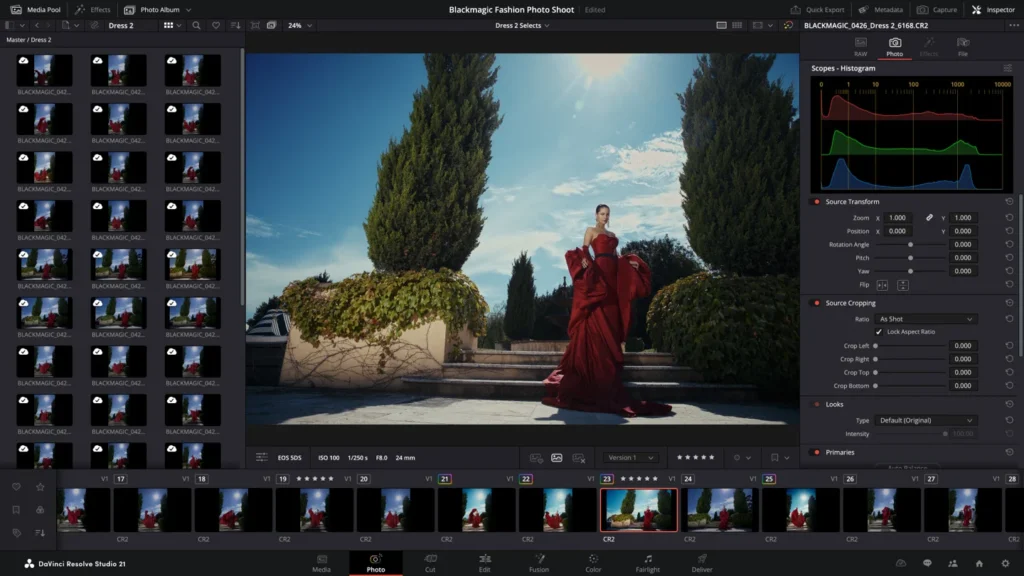
Resolve began life as a colour-grading tool, and it still shows. It is the editor professionals use for colour correction, and the free version is generous. According to Storyblocks, which updated its comparison in September 2026, the free version exports up to 4K UHD at 60 frames per second. Studio, the paid version, goes up to 32K and 120fps for a one-time price listed at about $295 to $299.
What you do not get for free is a list that matters to specialists: temporal and spatial noise reduction, full HDR with Dolby Vision, the Neural Engine tools such as Magic Mask, and AI features including Voice Isolation and Multicam SmartSwitch. Most hobbyists and YouTubers will never miss them.
What users say: Capterra shows DaVinci Resolve at 4.8 out of 5 from 273 reviews, with ease of use scoring a lower 4.0. Reviewers praise the free standard version, the colour tools and an editing layout that feels familiar if you have used other editors. Their complaints are specific: a project database that confuses non-technical users, a reported risk of database corruption and complicated migrations, and the need for proxies to edit 4K smoothly. G2 lists 4.7 from 221 reviews.
Who it fits: anyone willing to climb a learning curve for tools that will last for years.
Who should skip it: people on an older laptop, or anyone who wants a finished video in an hour.
2. CapCut: quick edits with strings attached
CapCut is built for short-form video, with templates, captions and effects that do most of the work. Dupple’s October 2026 check of CapCut’s own pages says the free plan adds no watermark itself, but many templates end with a CapCut logo clip you can delete, and some advanced templates, effects and stock elements carry watermarks. Exporting a project that uses Pro-only assets needs a Pro subscription, and removing the watermark from such a project also requires Pro.
Pro is listed at $19.99 a month or $179.99 a year. Older reviews quote lower prices, such as $9.99 a month in a 2024 Zapier review, so check CapCut’s page before you commit. The free export resolution is not published on the pricing page.
Two cautions come from FluxNote, a competing product, so treat them as leads to verify. It says CapCut has been blocked in India since June 2020 and that its US status has been subject to ongoing legal developments. It also says a June 2025 terms update reportedly grants CapCut broad rights over user content and that the free plan restricts commercial use. Read the current terms yourself, especially if you edit client footage.
Who it fits: creators making social clips on a phone.
Who should skip it: anyone who needs a guaranteed watermark-free export of a polished project without paying, or who handles confidential footage.
3. Clipchamp: simple, browser-based and watermark-free
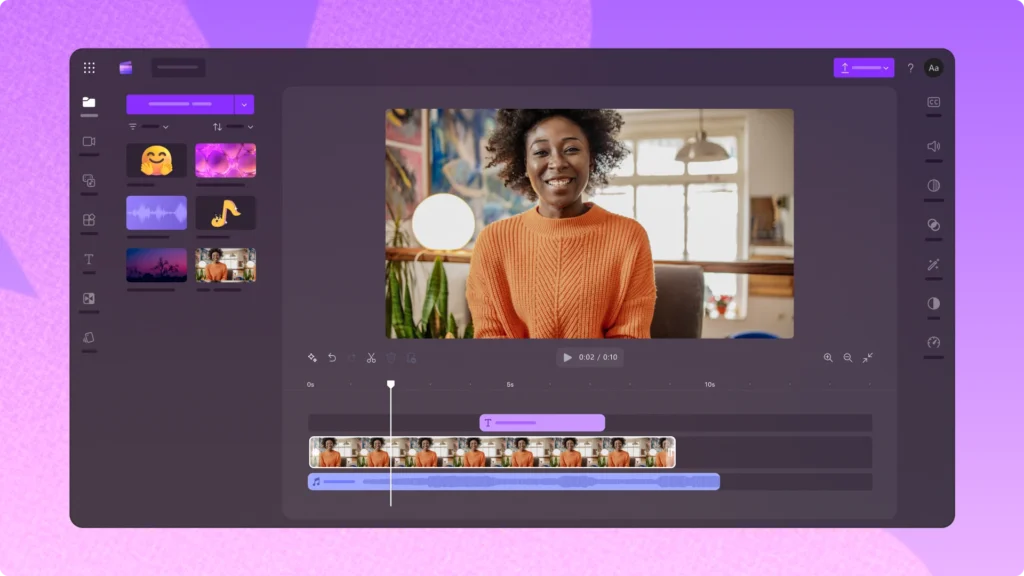
Clipchamp is Microsoft’s editor, and it runs in a browser as well as on Windows. Its pricing page lists the free plan as 1080p exports with no watermark, free stock assets and OneDrive backup. Windows Central reported in March 2022 that Microsoft had raised the free export limit from 480p to 1080p, which removed the biggest complaint about it.
The page does not say how much OneDrive storage comes with the free plan or give a price for the paid tier, so check the Microsoft 365 pages if you plan to upgrade. Beyond 1080p, the limits matter more to people who want 4K.
What users say: I could not verify a recent user score for Clipchamp, so there is none here.
Who it fits: beginners and office users who want clean exports without installing much.
Who should skip it: anyone who needs 4K or deep control.
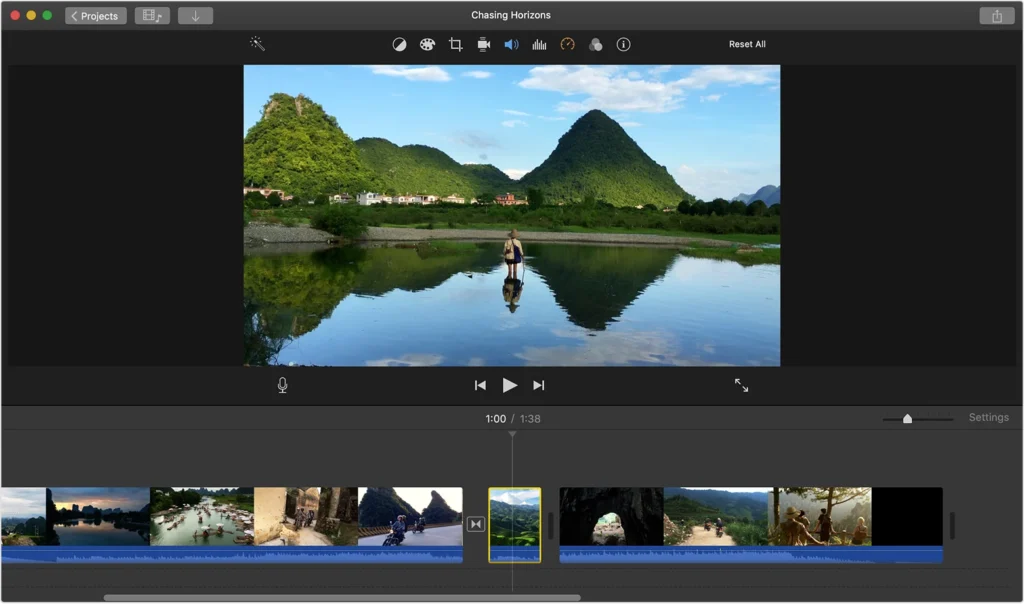
4. iMovie: the easy choice on Apple devices
If you own a Mac, iPhone or iPad, iMovie is already there. Apple’s Mac App Store listing says it edits movies at up to 4K with footage from iPhone 6s or later, GoPro and other Ultra HD cameras, and includes 29 trailer templates, green screen, picture-in-picture, stabilization, colour adjustment and 48 video and audio effects. It also exports for YouTube and Facebook.
The listing shows an inconsistency in its system requirements, naming macOS 26.4 in one place and 26.6 in another, so check your macOS version before you plan around it. It also showed no star rating for the Mac app when I read it, so I have no score to quote.
Who it fits: Apple users who want a clean, no-fuss workflow.
Who should skip it: Windows and Linux users, because it is not available there.
5. Kdenlive: open-source and flexible
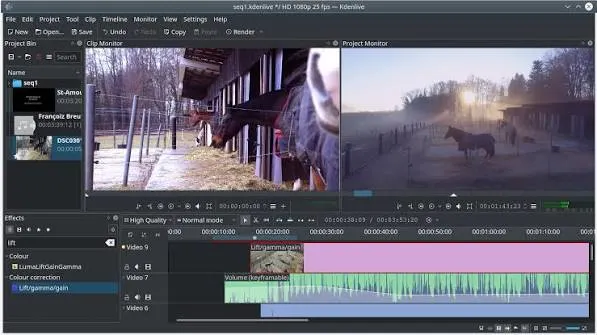
Kdenlive is a free, open-source editor for Linux, Windows, macOS and BSD. It offers multi-track editing, effects, transitions and proxy editing, which lets you edit lightweight copies of heavy files. Zapier’s 2024 review rated it as the cross-platform open-source pick, and noted that GPU rendering was experimental.
Toolradar lists it at 4.9 out of 5 from 27 reviews, citing G2 at 4.5 and SourceForge at 5.0. That is a small sample from an aggregator, not a primary source, so treat it as a signal only. The usual complaint is the learning curve.
Who it fits: people who want full control and no strings, including Linux users.
Who should skip it: anyone who wants templates and instant results.
6. Shotcut: lightweight on paper, serious underneath
Shotcut is another open-source editor for Windows, Mac and Linux. According to Movavi’s comparison it supports native 4K and ProRes, GPU acceleration, advanced colour grading, professional audio mixing and full FFmpeg-based export control with batch exporting. It runs better on stronger hardware, and the same comparison rates it as stable for most edits, while noting that crashes on large edits can still happen and suggesting the Auto Save plugin and proxy editing.
On ratings, Toolradar lists Capterra 4.5, G2 4.2 and SourceForge 2.4. That SourceForge number looks like an outlier next to the others, and the page does not explain how it was calculated, so do not lean on any one score.
Who it fits: people who want powerful free editing and do not mind learning an unusual interface.
Who should skip it: complete beginners who want a guided experience.
7. OpenShot: the easiest open-source option
OpenShot runs on Windows, Mac and Linux, and Movavi’s comparison calls it very beginner-friendly and light enough for older PCs. It offers unlimited tracks, keyframe animation and 3D animated titles.
It has real limits. There is no GPU acceleration, so exports are slow at high resolutions, and it struggles with 4K and long timelines. The same article lists minor crashes on large edits and some project instability during complex edits.
Who it fits: students, school projects and short clips on modest hardware.
Who should skip it: anyone working in 4K or on long projects.
How do you choose the right free video editor?
Start with your computer and your goal, not the feature list.
- Short social clips on a phone: CapCut, and read the terms first.
- Quick, clean 1080p edits with no installation fuss: Clipchamp.
- A Mac or iPhone you already own: iMovie.
- A serious project, colour work or a long-term skill: DaVinci Resolve on a capable machine.
- Open source with no account: Kdenlive or Shotcut.
- An old laptop or a school project: OpenShot.
A useful test before you commit: edit five minutes of your own footage, add a title and a transition, and export it. That tells you more about speed, stability and watermarks than any review.
What do users trust most?
No source here ranks all seven, and review scores come from different sites with different audiences, so I am not going to invent one ranking. What the evidence does support is narrower. DaVinci Resolve has the strongest verified scores in this list, 4.8 on Capterra and 4.7 on G2, but its own reviewers say it is harder to learn and heavier on your computer. Shotcut and Kdenlive score well on small samples. For CapCut, Clipchamp and iMovie I could not find scores I could verify, so choose them on features and terms rather than stars.
Frequently asked questions
Where to start
Pick the editor that matches your computer, export a short test video and look at the result before you commit. If you want help getting your own videos and pages found in search, Digiinte’s professional SEO services cover content planning, optimization and link building.

Behind every post at digiinte.com is a team of experienced SEO analysts and digital growth specialists. Our insights are backed by real data, industry research, and hands-on campaign experience — so you get advice that actually moves the needle.